Flexwash Network

**Before you follow the instructions below, please make sure that the tablet is connected to the Flexwash Network (WiFi or Ethernet), otherwise the link for the wash queue will not load.
Copy and paste the following link on any browser:

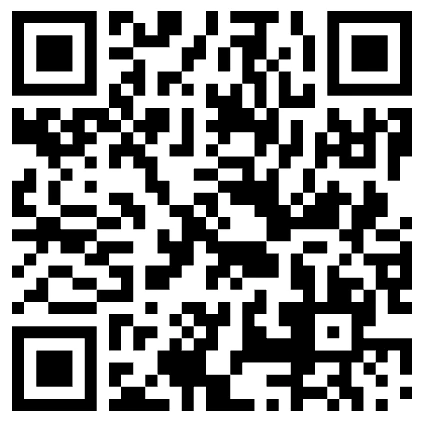
QR code

You can also scan the QR code below to access the site:
wash queue qr code
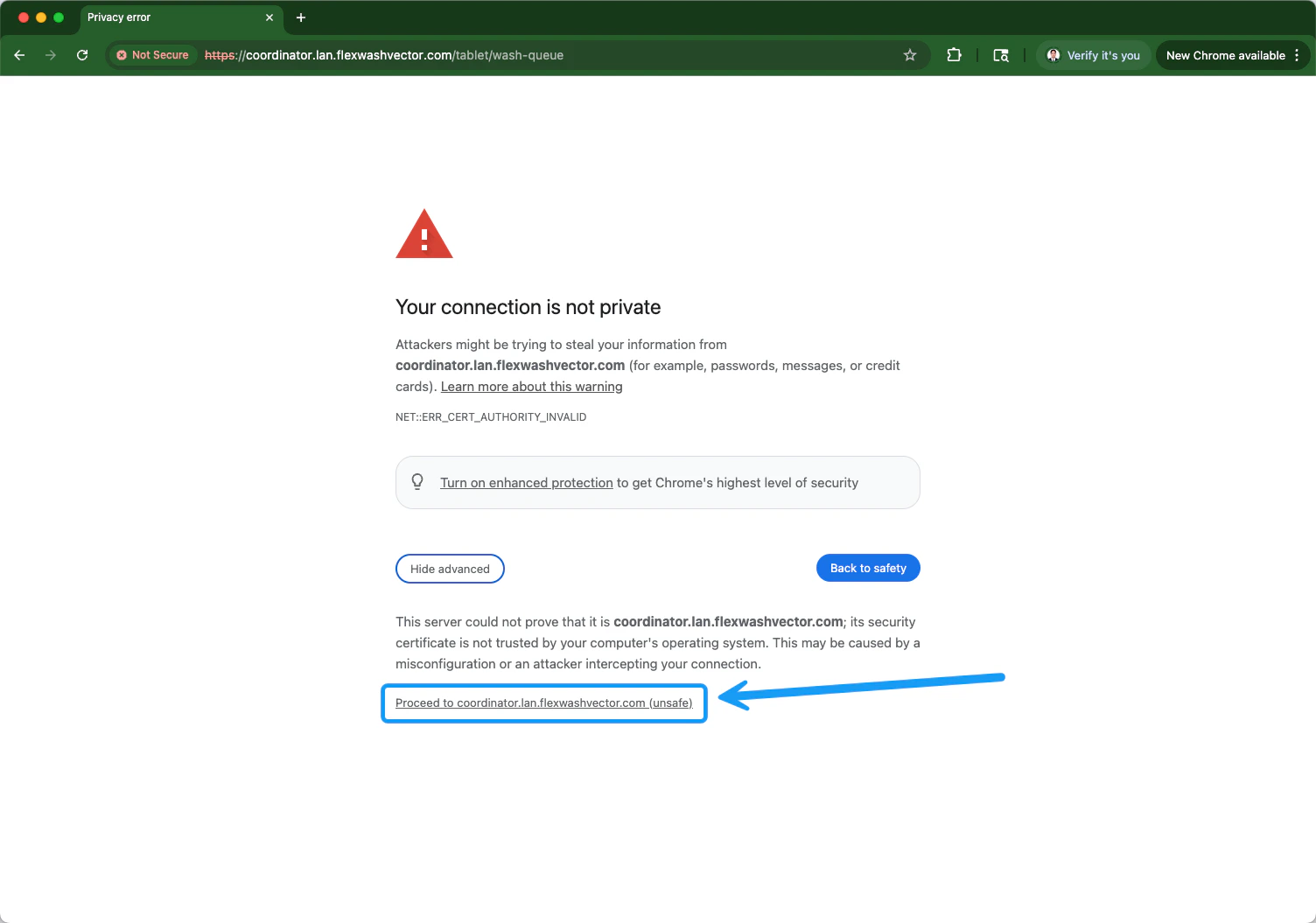
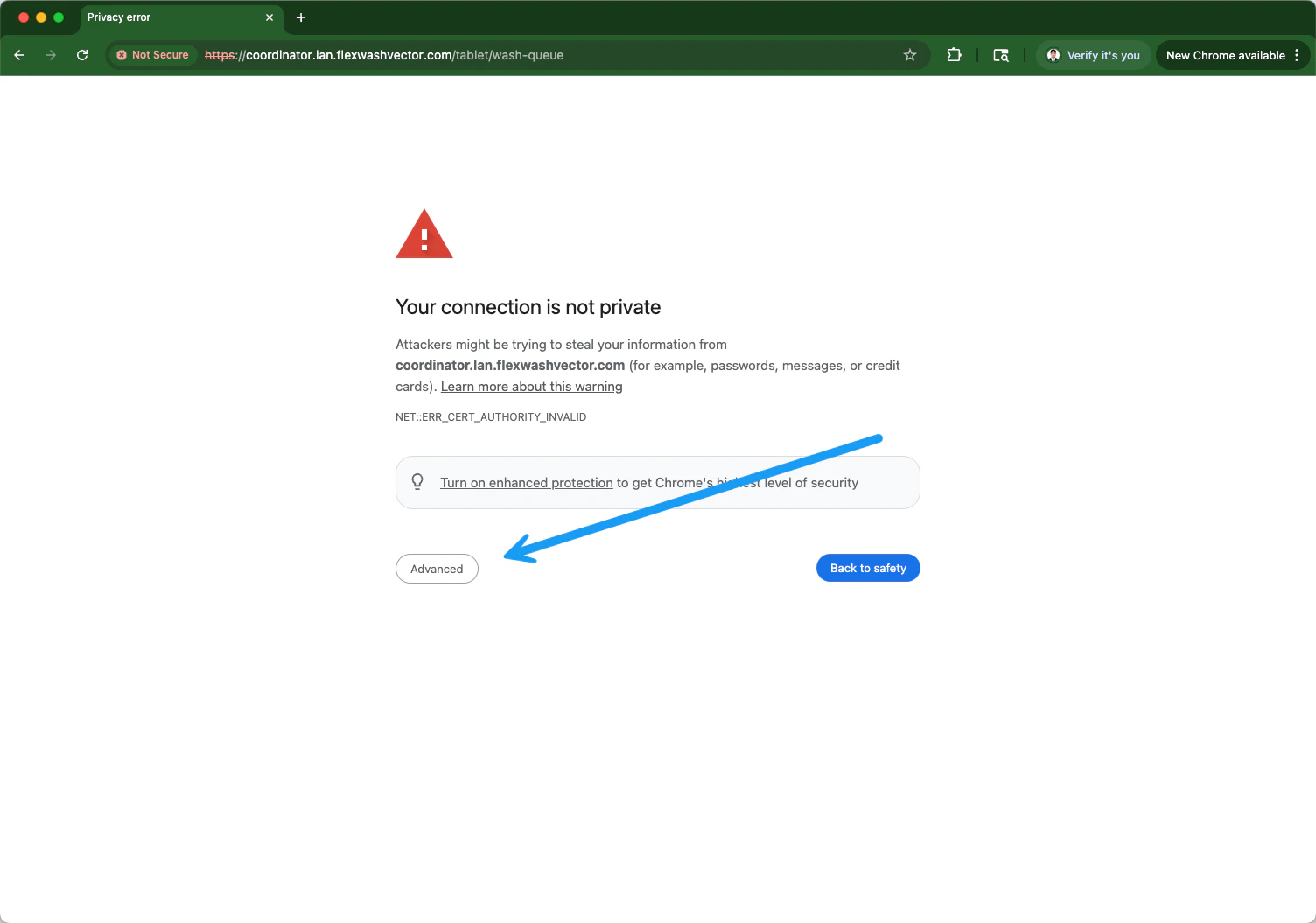
A “connection is not private” warning message will appear. Click or tap on the “Advanced” option located on the lower left corner as shown on the screenshot below: 1wq Pn 2wq Pn
If your site has Auto-Queue enabled, the wash queue tablet automatically switches to a hands-free layout for unattended lanes. See Auto-Queue.

Wash Queue

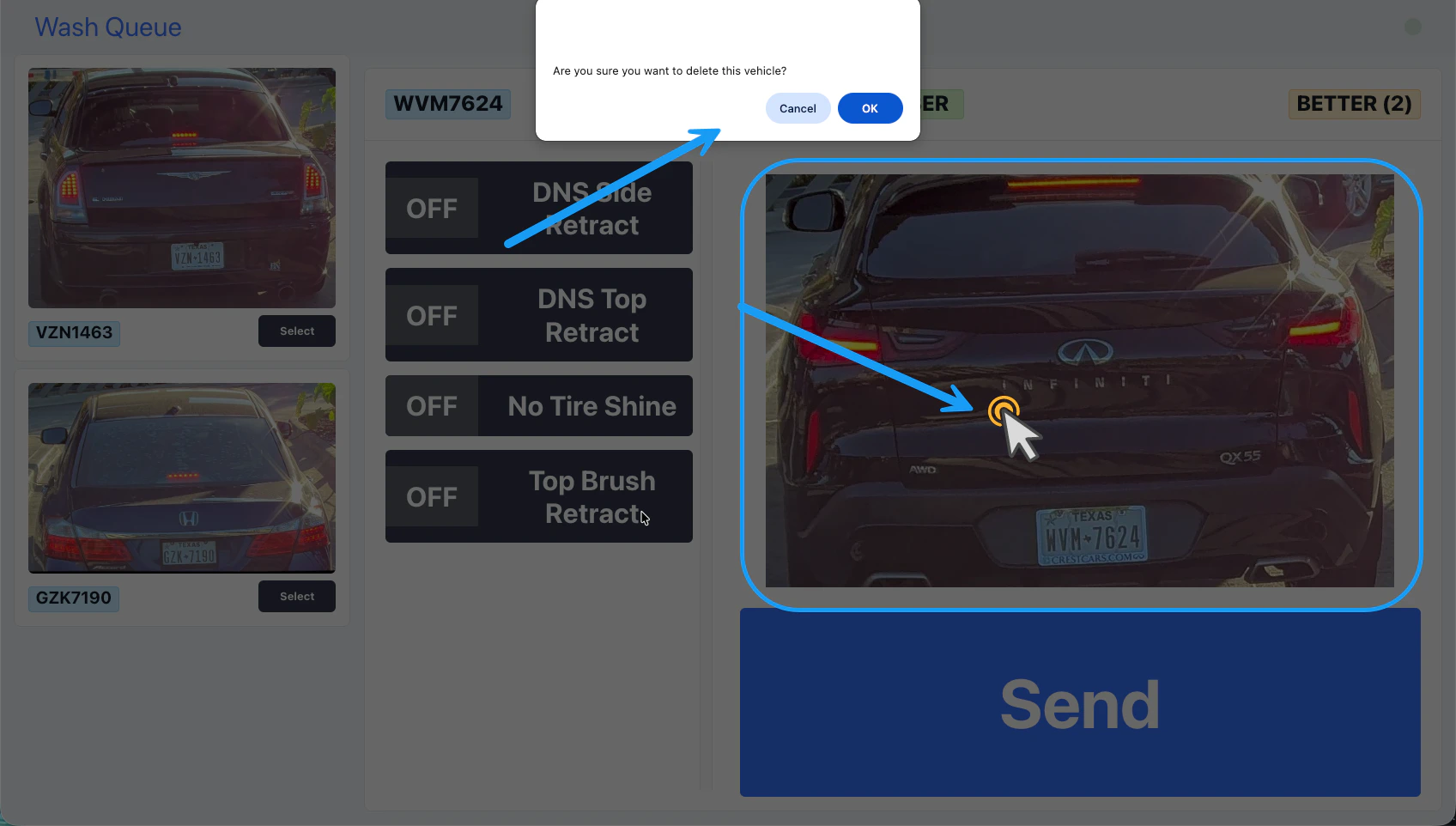
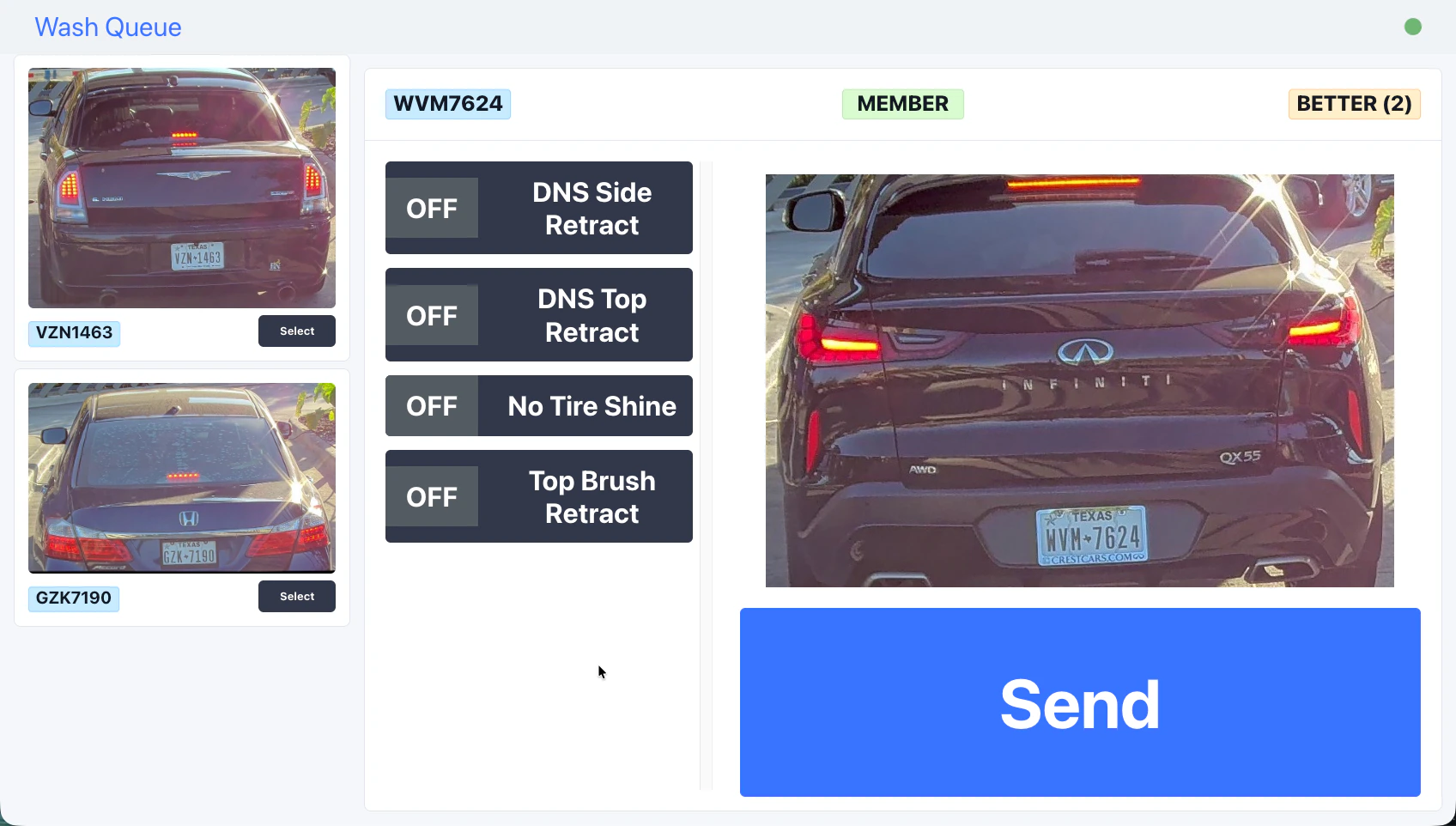
The wash queue will now appear as shown on the screenshot below: Newwshq77777 Pn
Delete Vehicle from Wash Queue

Newwshqueueue Pn To delete a vehicle from the Wash Queue, click or tap anywhere on the vehicle’s image. A new window will pop up asking to confirm, select “OK” and the vehicle will be removed.
For the hardware that runs the wash queue in the tunnel, see Tunnel Tablet.