
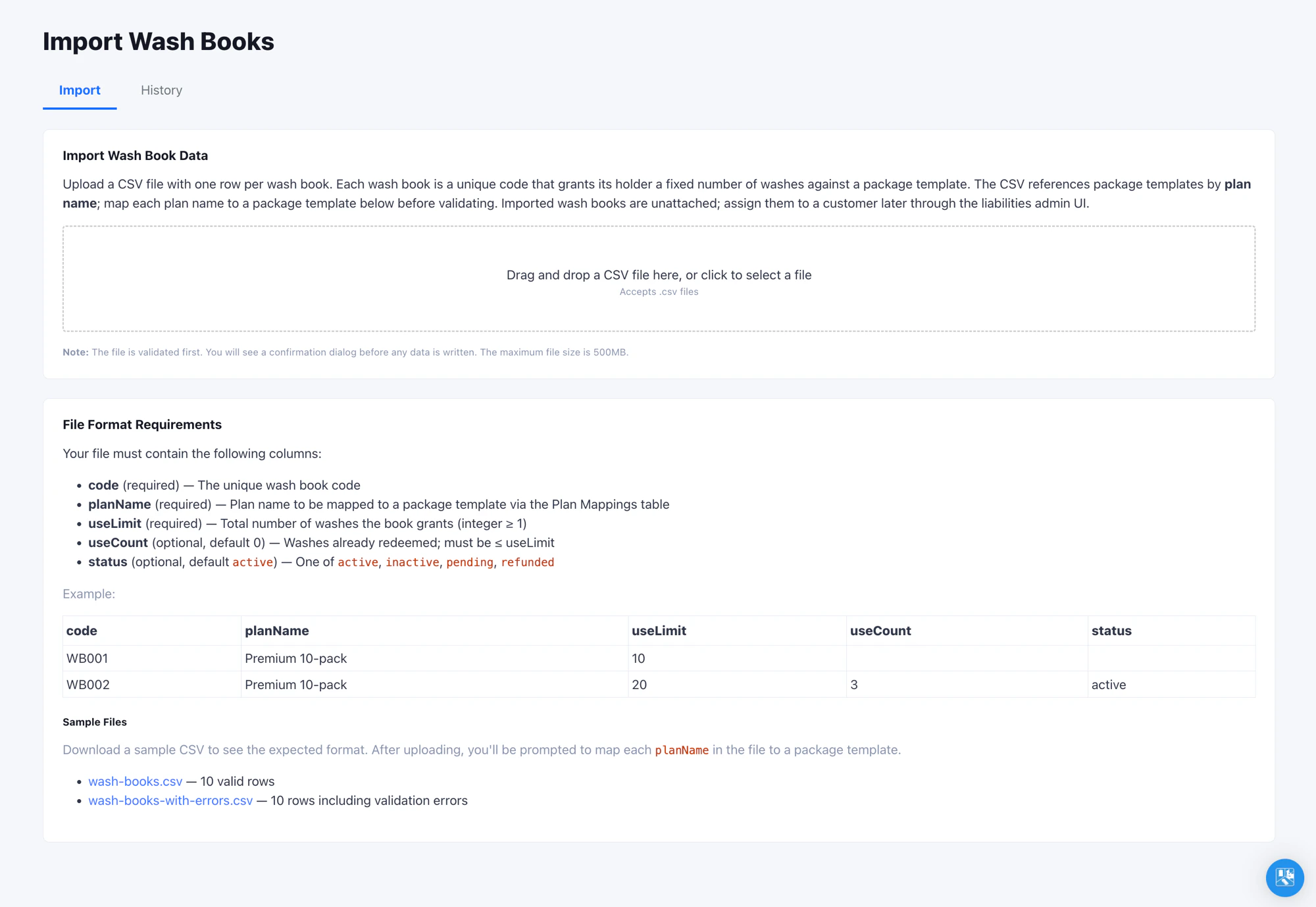
Where to Find It
Open Admin -> Import -> Wash Books in the left navigation. Access requires the Edit Liabilities Reports permission - the same permission that controls editing on the Liabilities admin page. Ask your organization administrator if the page is not visible.Where Imported Wash Books Show Up
Imported wash books land in the organization’s pool unattached to any customer. To find them, open Reports -> Liabilities and switch to the Wash Books tab. Search by code to confirm a specific book imported correctly.Re-Importing and Updating Books
Re-import the same file as many times as you need. Wash books are matched by code, and the latest upload wins: a code already in your organization has its plan, use limit, and use count overwritten, while new codes are added. Re-running never creates duplicate books. Use this to correct remaining-use counts or refresh balances that shifted in your legacy system between exports. Update the CSV and upload it again.Verify the Import
Run an end-to-end test before committing to a full file:- Upload a 5 to 10 row test CSV.
- On the pay tablet, enter the plate, tap Wash Book on the top row, then scan or enter a code from the test file.
- Confirm the book’s package is selected with a 100% discount applied.
Tips
- If a plan name has multiple variants in your legacy data (e.g.
Premium 10-packvspremium 10-pack), normalize them to one casing before exporting. Plan mappings are case-sensitive. - The same plan mapping table is shared with the Vehicles importer. Mapping a plan once benefits both importers.