Overview
The Site page lists everything FlexWash installed at one location. Open Admin > Site, then select the car wash in the top bar.Devices
The Devices tab groups devices by where they are used: Coordinators, Lanes, Payment Devices, Receipt Printers, Tunnel and Network. Each card shows the device name and model, its MAC and IP address, and its latest ping result in the bottom right corner.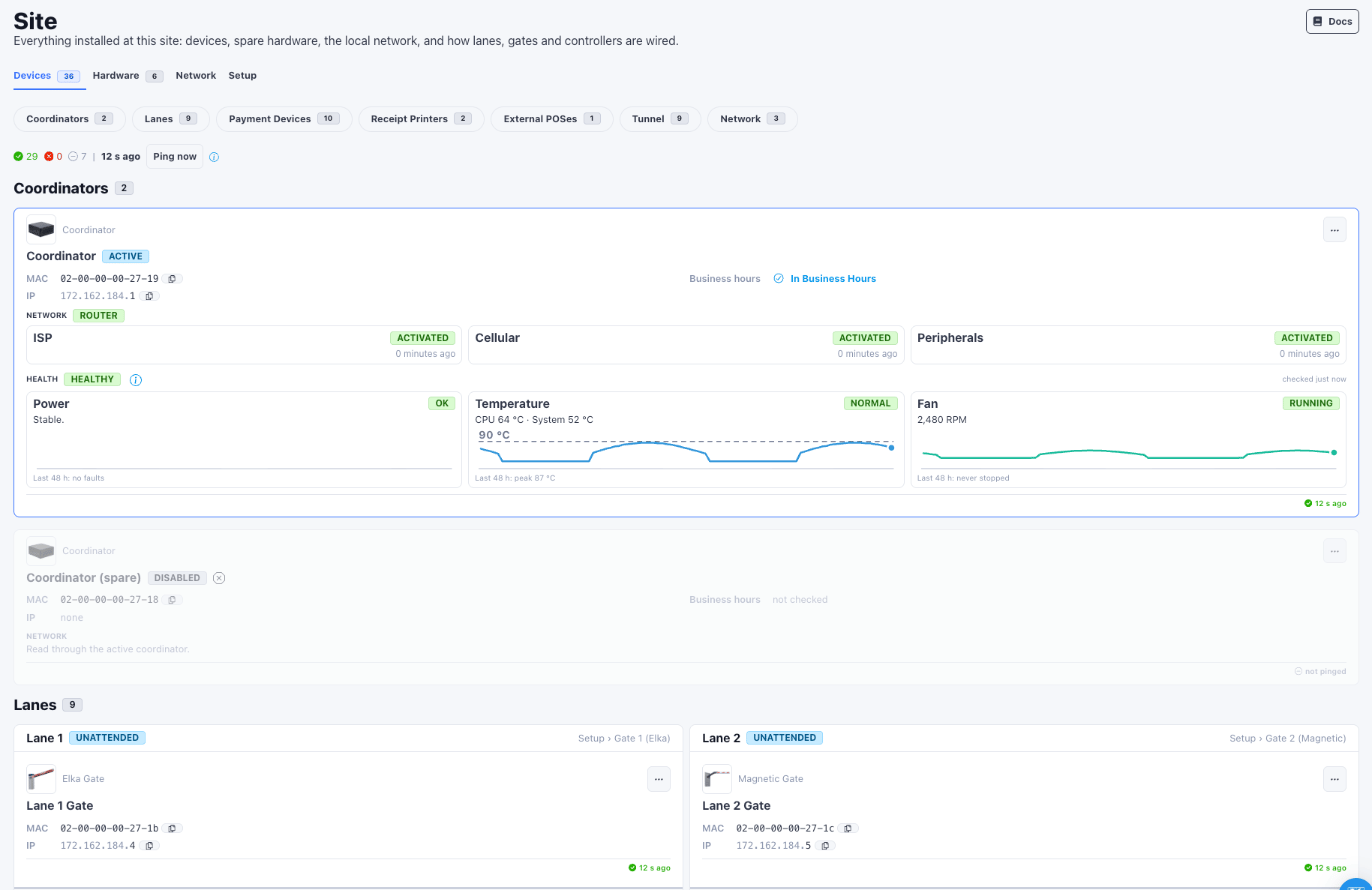
Ping Test
A ping test asks a device to answer over the network. A device that answers has power, is connected, and is responding. FlexWash pings every device automatically, every 30 seconds, while the Devices tab is open. The bar above the cards counts the devices that answered the last ping, failed it, or were not pinged, and shows when the last test ran.
Run a ping test
1
Open the Devices tab
Open Admin > Site and select the car wash.
2
Click Ping now
Each card shows pinging… while the test runs. The test takes a few seconds.
3
Read each card
The result is in the bottom right corner of each card. Hover over it for details.
Read the result

If the Coordinator is unreachable, every device it tests also reads as unreachable. Restore the Coordinator first. Pay terminals and pay tablets are tested separately.
If a device is unreachable
- Confirm the device has power.
- Confirm its network cable is seated at both ends and the switch port light is on.
- Click Ping now again.
- If it is still unreachable, follow Network Issues or On Prem Issues, or contact support.
Coordinator Health
The active Coordinator card reports the condition of its own hardware under Health, in three tiles: Power, Temperature and Fan. Power is checked every 5 seconds. Temperature and fan speed are checked every 2 minutes. Each tile also charts the last 48 hours, so there is always a full open day to compare against. Hover over a chart for the time and value.
When a Coordinator restarts, its Health section reads Starting until its first readings arrive, within 2 minutes.
Power fault
A power fault means the Coordinator is not getting stable power. It slows itself down until power is stable again, so plate reads, gate opens and checkouts can lag or time out. This is a power problem, not a heat problem. The usual cause is a failing, loose or underpowered power adapter. Recent power faults means power is stable right now, but the Coordinator reported short faults in the last 48 hours. Each one slows the Coordinator for a few seconds. Faults that keep coming back usually mean the power adapter is failing or its outlet is overloaded.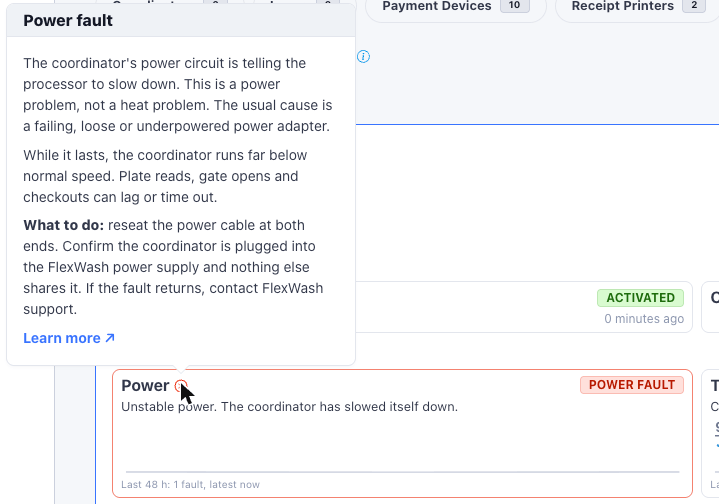
- Reseat the power cable at both ends.
- Confirm the Coordinator is plugged into the FlexWash power supply and non-FlexWash equipment shares it.
- If the fault returns, contact support.
Overheating
Overheating means the Coordinator is at 95 °C or above, close to the limit of its processor. It slows itself down to cool off and can shut down if it gets hotter. Hot means it is at 90 °C or above. It still runs at full speed, but it is close to overheating. Hot during business hours is normal, overheating is not. What to do:- Turn off the Coordinator.
- Use an air blaster to clear out any dirt or dust that has built up inside it.
- Check where it sits against Placement and Cooling.
Fan stopped
The cooling fan reports 0 RPM. If the temperature is also high, the fan has most likely failed or is blocked. What to do: turn off the Coordinator and check that nothing is jammed in the vents.Placement and Cooling
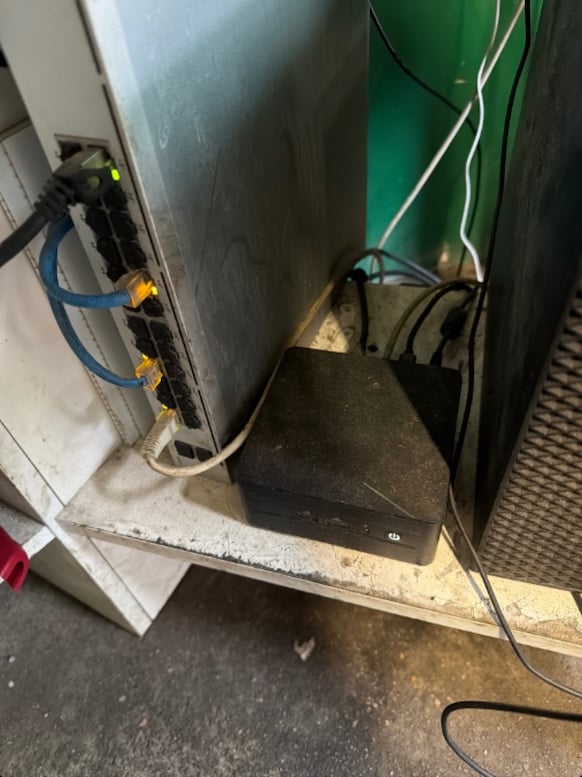
The Coordinator and the switch cool themselves with air. Where and how they sit decides whether they stay cool.- Coordinator: keep the vents on its sides completely unobstructed so its fans can dissipate heat. Nothing may cover or press against them.
- Switch: lay it horizontally flat so it can dissipate heat. Do not stand it on its side.
- Room: keep both in a climate-controlled room, in an enclosure that stops dust from building up.
- Cleaning: if dirt or dust has built up, turn off the Coordinator and clear it out with an air blaster.
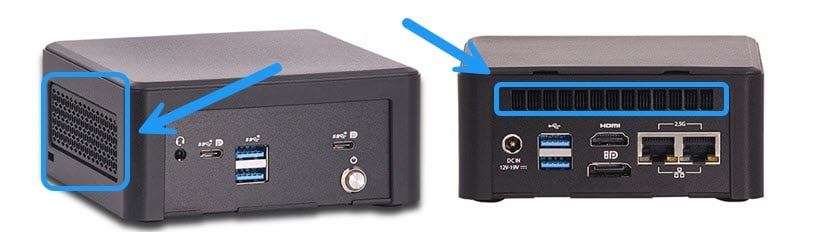
The Coordinator's vents. Keep them clear.