- Top Brush
- Side/Rear Wraps
- All Wraps
- Tire Shine/Wheel Cleaner
- Undercarriage
How retracts work
Retracts live in two places, and both are required.
FlexWash does not create retracts. It references retracts that already exist in your controller. If a retract is not configured and enabled in the controller, adding it to FlexWash will not make it work.
Once a retract exists in both places, you can trigger it manually from the Wash Queue, or apply it automatically to a vehicle on every visit. See Auto Retracts.
Step 1. Configure the retract in your controller
Every controller handles this differently. r-TC, TunnelWatch, and ICS each have their own screens, terminology, and setup steps, so follow your controller’s documentation or work with your controller vendor. What matters is the outcome. When you are done, you need two things:- The retract is enabled in the controller and does what you expect when triggered.
- The retract’s code number, which is how FlexWash tells the controller which retract to fire.
5. In TunnelWatch or ICS the same retract could carry a different number. The name and the number both come from the controller, not from FlexWash.
Step 2. Add the retract in FlexWash
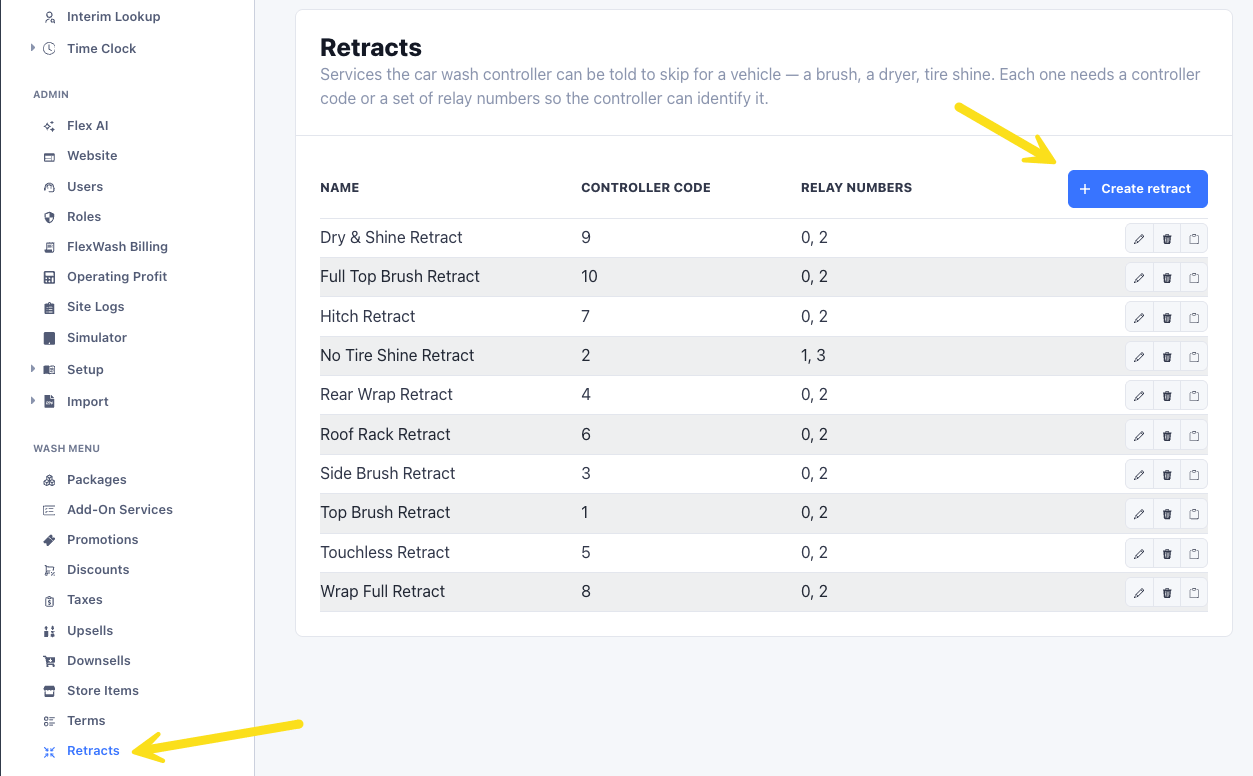
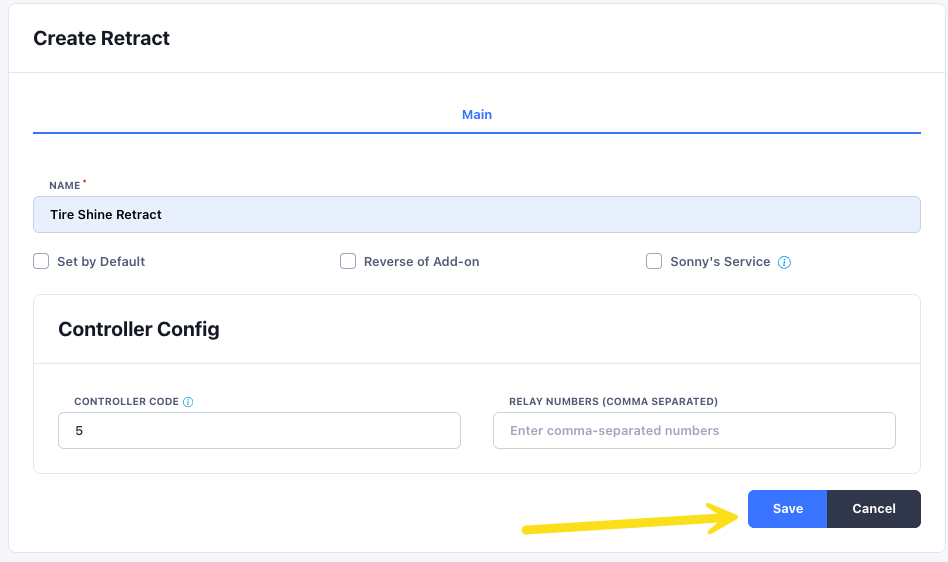
Go to Wash Menu > Retracts and add a new retract.- Name. Use the same name the controller uses. If the controller calls it “No Tire Shine,” call it “No Tire Shine” here too.
- Code. Enter either the code number from the controller or the relay numbers if you are using a relay-based controller with binary programming.
Naming
Your staff see these names on the Wash Queue, and tags attach to them, so set them before building anything on top.- Match the controller. A retract with one name in the controller and another in FlexWash makes troubleshooting harder than it needs to be.
- Match across sites. If “No Tire Shine” is code
5at one site and7at another, that is fine, but the name should be identical at both. Consistent names are what make a retract behave predictably for a customer who visits more than one of your locations. - Describe the outcome, not the equipment. “No Tire Shine” tells a loader what happens. “Retract 5” does not.
Verify it works
Run a vehicle through with the retract triggered before you rely on it.1
Trigger the retract
Load a vehicle and apply the retract to a single wash from the Wash Queue.
2
Watch the equipment
Confirm the correct piece of equipment retracts, and that nothing else changed.
3
Repeat at each site
Codes differ per controller, so a retract that works at one location proves nothing about another.