> ## Documentation Index
> Fetch the complete documentation index at: https://docs.flexwash.com/llms.txt
> Use this file to discover all available pages before exploring further.
# QR Self-Checkout
> Turn any lane into a self-serve lane with a QR code, no kiosk required.
Every lane has its own QR code. A customer scans it with their phone, picks
their vehicle out of the lane's live queue, buys a wash or joins a membership,
and pays, with no attendant and no pay station.
A printed sign is the whole install, so a lane can run self-serve without the
cost of a pay station or the power and network runs to support one.
Print the code once and mount it at the lane. The only setup is choosing which
packages appear on the menu.
## Set up the QR code
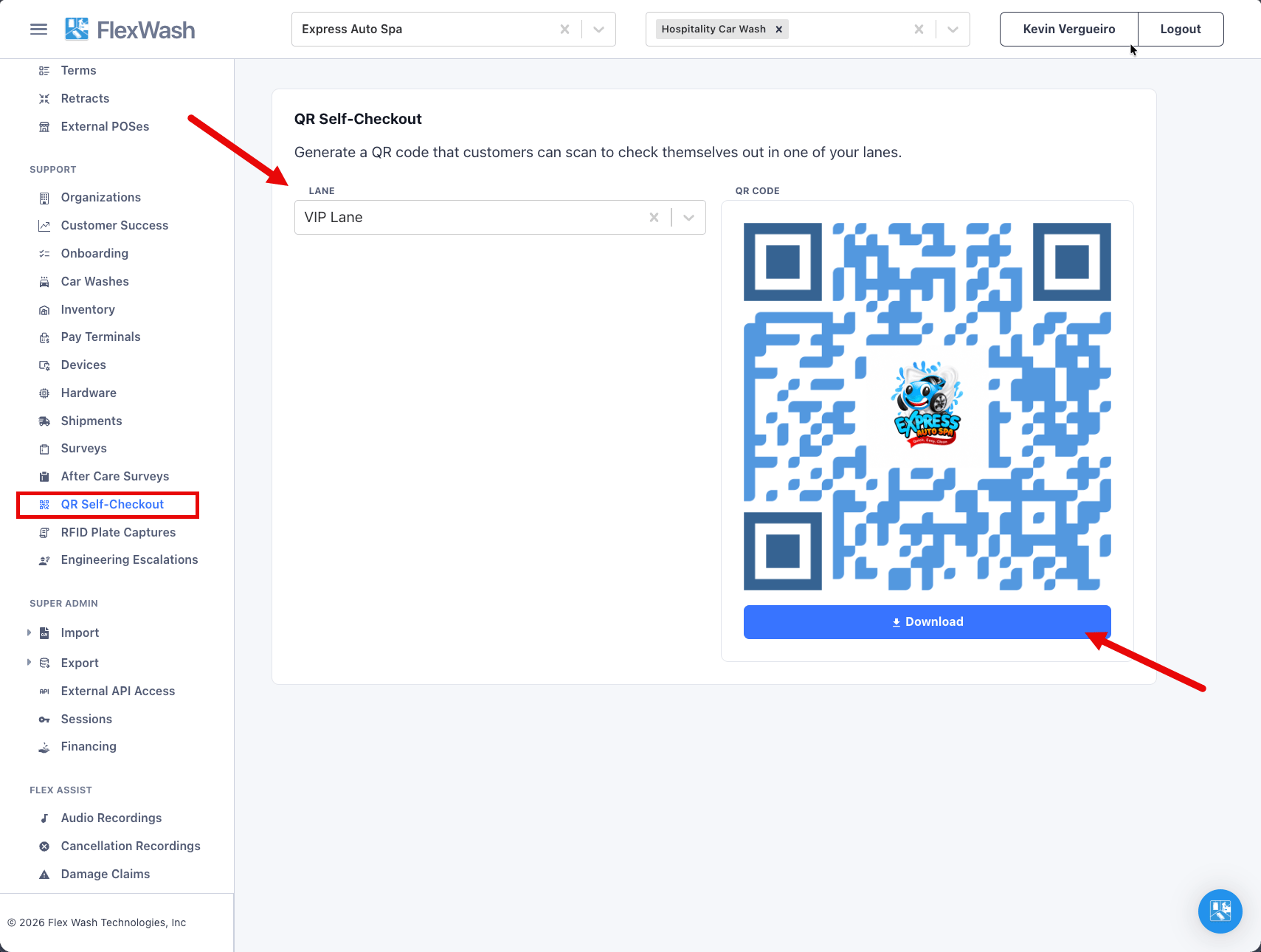
1. Select a single car wash in the top bar. The page needs exactly one car
wash selected.
2. Go to **Support**, then **QR Self-Checkout**.
3. Pick the lane from the **Lane** dropdown. The QR code appears immediately,
in FlexWash blue with your organization's logo in the middle.
4. Download the code as a PNG to send to your sign printer, or click the code
to open the customer page and try it yourself.
 Lane names come from your site configuration. See [Car Wash
Config](/configuration/users-and-admin/car-wash-config) to rename a lane or
switch it between attended and unattended.
The QR code is a lane credential. Anyone who scans it can open that
lane's checkout page. The code does not rotate and cannot be regenerated, so
a printed code stays valid for as long as the lane exists.
## Choose what appears on the menu
The self-checkout page only lists packages you have flagged for it. This
applies to single washes and to memberships. A package template that is not
flagged never appears, even if it is active everywhere else.
Go to **Wash Menu**, then **Packages**, and open the package template.
Open the **Access Control** tab and check **Self-Checkout Enabled**. Then
click **Save**.
Lane names come from your site configuration. See [Car Wash
Config](/configuration/users-and-admin/car-wash-config) to rename a lane or
switch it between attended and unattended.
The QR code is a lane credential. Anyone who scans it can open that
lane's checkout page. The code does not rotate and cannot be regenerated, so
a printed code stays valid for as long as the lane exists.
## Choose what appears on the menu
The self-checkout page only lists packages you have flagged for it. This
applies to single washes and to memberships. A package template that is not
flagged never appears, even if it is active everywhere else.
Go to **Wash Menu**, then **Packages**, and open the package template.
Open the **Access Control** tab and check **Self-Checkout Enabled**. Then
click **Save**.
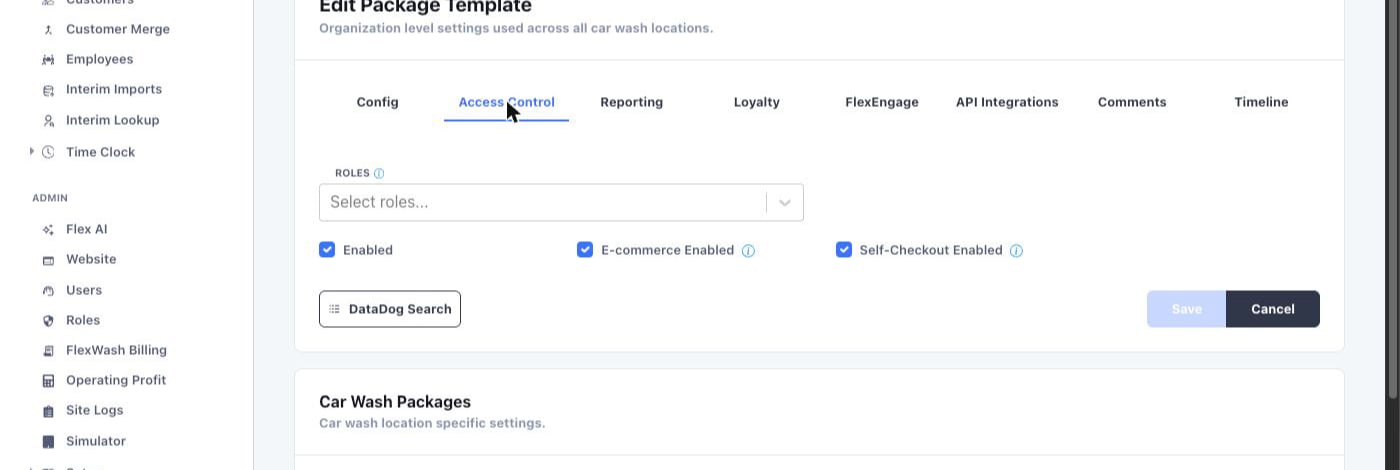 Flag every single wash and every membership package you want to sell at
the lane. Membership packages appear under their own **Monthly
Memberships** heading on the customer page.
The package must also have **Enabled** checked on the same tab. Disabled
packages stay hidden from self-checkout regardless of the Self-Checkout
Enabled flag. Packages appear in the same order as your package list.
A membership sold at the lane only opens the gate if the membership package
has an **Unattended Default** benefit. Without one the customer's
membership still activates, but nothing is queued and an attendant has to
send the wash. See [Memberships](/memberships/membership) for how benefits
work.
## What the customer sees
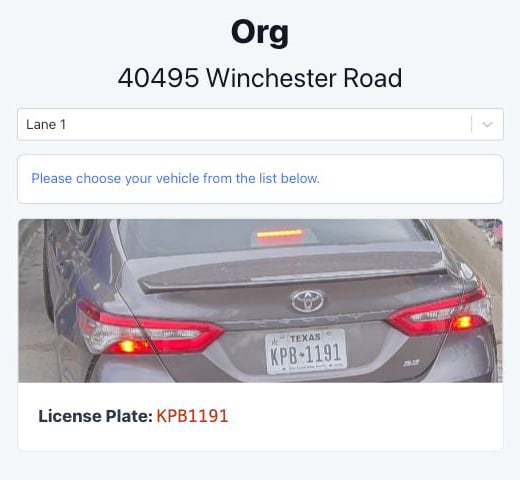
The page opens with your logo and the site address, and a lane dropdown set to
the lane they scanned. The page then shows the live checkout queue for that
lane and refreshes every few seconds. The customer taps their vehicle. The
vehicle has to be in the queue already, so the site needs to be operational.
Flag every single wash and every membership package you want to sell at
the lane. Membership packages appear under their own **Monthly
Memberships** heading on the customer page.
The package must also have **Enabled** checked on the same tab. Disabled
packages stay hidden from self-checkout regardless of the Self-Checkout
Enabled flag. Packages appear in the same order as your package list.
A membership sold at the lane only opens the gate if the membership package
has an **Unattended Default** benefit. Without one the customer's
membership still activates, but nothing is queued and an attendant has to
send the wash. See [Memberships](/memberships/membership) for how benefits
work.
## What the customer sees
The page opens with your logo and the site address, and a lane dropdown set to
the lane they scanned. The page then shows the live checkout queue for that
lane and refreshes every few seconds. The customer taps their vehicle. The
vehicle has to be in the queue already, so the site needs to be operational.
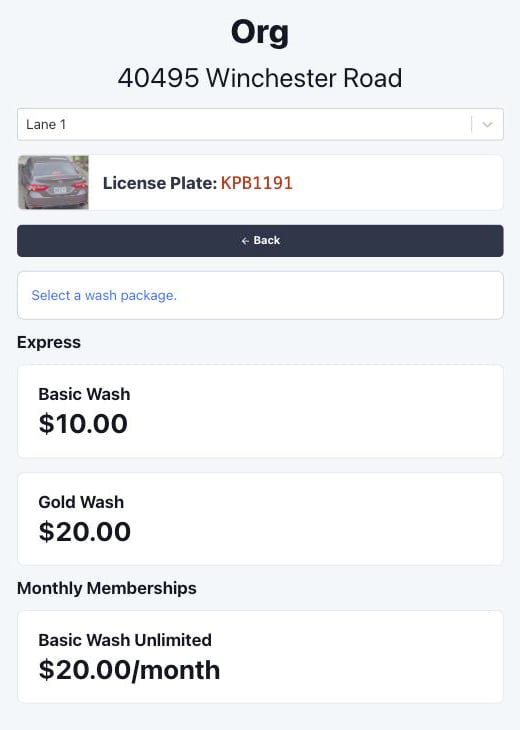
 Once a vehicle is chosen, the page shows a menu with two sections: single
washes grouped by package type, and **Monthly Memberships**. A **Back**
button at the top of every later step returns the customer to this menu.
Once a vehicle is chosen, the page shows a menu with two sections: single
washes grouped by package type, and **Monthly Memberships**. A **Back**
button at the top of every later step returns the customer to this menu.
 What happens next depends on what the customer picks.
The customer taps a wash package. Only packages flagged for
self-checkout appear.
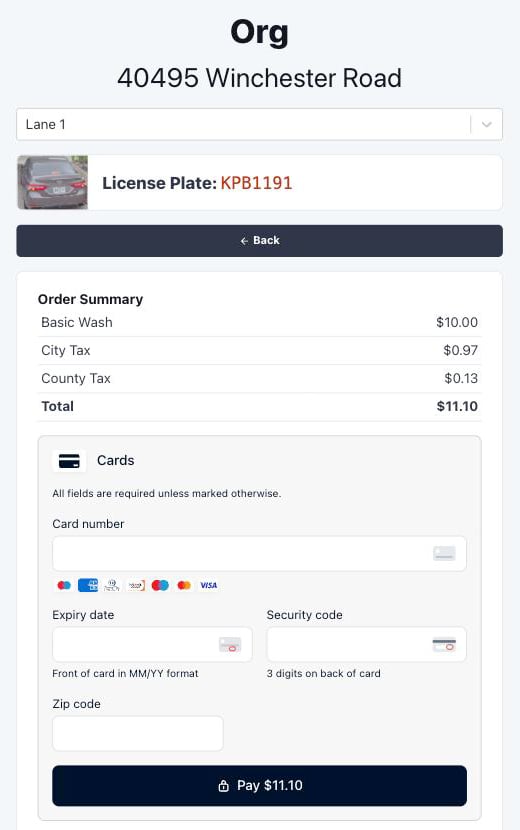
The page shows an **Order Summary** with the wash and any taxes, then
the payment form. The customer pays by card, Apple Pay, or Google Pay.
What happens next depends on what the customer picks.
The customer taps a wash package. Only packages flagged for
self-checkout appear.
The page shows an **Order Summary** with the wash and any taxes, then
the payment form. The customer pays by card, Apple Pay, or Google Pay.
 The page shows **Payment Success** with a **View Receipt** button
that opens the web receipt. Under it, a status card tracks the wash:
**Queuing Your Wash** while FlexWash contacts the on-site system,
then **Wash Queued** once the vehicle is in the wash queue and the
gate, if there is one, lets the customer through.
Self-checkout does not collect an email address for a single wash, so
the receipt is available from the **View Receipt** button only. No
receipt email is sent.
The customer taps a plan under **Monthly Memberships**. If the vehicle
already has a membership, the section is hidden and only single
washes are offered.
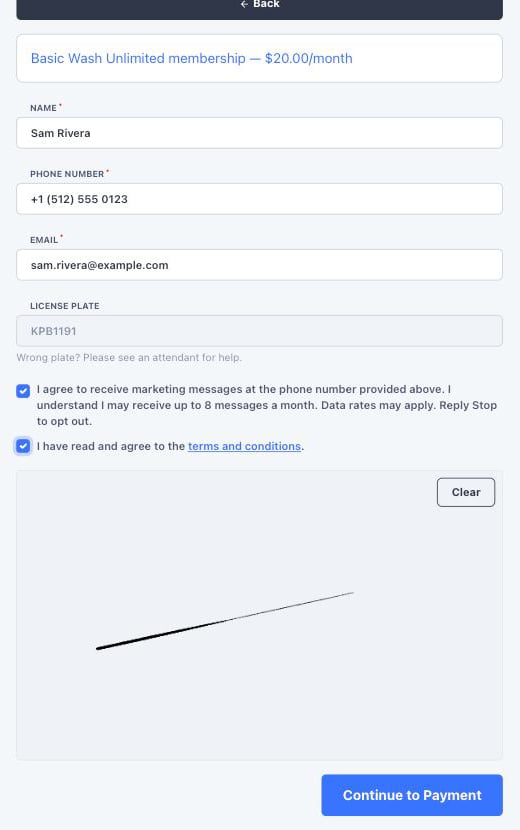
The form asks for name, phone number, and email. The license plate is
filled in from the vehicle they chose and cannot be edited. If the
plate is wrong, the form tells them to see an attendant.
A marketing opt-in checkbox uses your organization's opt-in message.
If the membership package has terms and conditions assigned, the
customer also has to check **I have read and agree to the terms and
conditions** and sign in the signature box. The customer then taps
**Continue to Payment**.
The page shows **Payment Success** with a **View Receipt** button
that opens the web receipt. Under it, a status card tracks the wash:
**Queuing Your Wash** while FlexWash contacts the on-site system,
then **Wash Queued** once the vehicle is in the wash queue and the
gate, if there is one, lets the customer through.
Self-checkout does not collect an email address for a single wash, so
the receipt is available from the **View Receipt** button only. No
receipt email is sent.
The customer taps a plan under **Monthly Memberships**. If the vehicle
already has a membership, the section is hidden and only single
washes are offered.
The form asks for name, phone number, and email. The license plate is
filled in from the vehicle they chose and cannot be edited. If the
plate is wrong, the form tells them to see an attendant.
A marketing opt-in checkbox uses your organization's opt-in message.
If the membership package has terms and conditions assigned, the
customer also has to check **I have read and agree to the terms and
conditions** and sign in the signature box. The customer then taps
**Continue to Payment**.
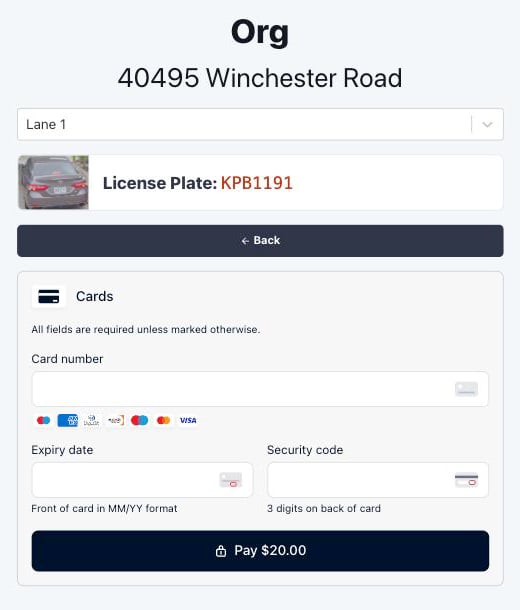
 The customer enters their card. FlexWash charges the first month and
saves the card for recurring billing in the same step.
The customer enters their card. FlexWash charges the first month and
saves the card for recurring billing in the same step.
 The page shows **Membership Active** with a **View Receipt** button.
If the membership package has an **Unattended Default** benefit,
FlexWash records the member's first wash against that benefit and
queues it, so the gate opens for them right away, and the same
**Queuing Your Wash** and **Wash Queued** status card appears as for a
single wash. Without that benefit the membership is still active, but
nothing is queued and an attendant has to send the wash.
Signed terms are stored on the customer's record. See [Signed Terms and
Conditions](/memberships/signatures) to find them.
## Recover a failed membership payment
When a member's card stops working, the lane is the best place to fix it. The
member is already there, and they want to wash.
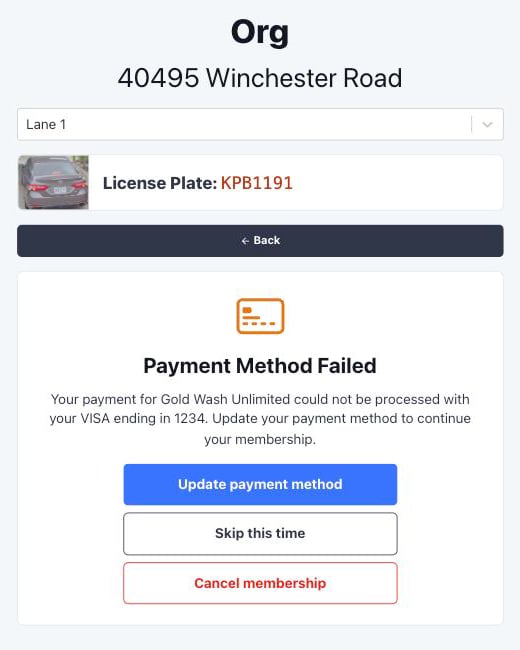
If the chosen vehicle's membership is in **Payment Failed** or **Invalid
Card** status, the page shows **Payment Method Failed** instead of the menu.
The card names the membership package and the card on file, and offers three
choices.
The page shows **Membership Active** with a **View Receipt** button.
If the membership package has an **Unattended Default** benefit,
FlexWash records the member's first wash against that benefit and
queues it, so the gate opens for them right away, and the same
**Queuing Your Wash** and **Wash Queued** status card appears as for a
single wash. Without that benefit the membership is still active, but
nothing is queued and an attendant has to send the wash.
Signed terms are stored on the customer's record. See [Signed Terms and
Conditions](/memberships/signatures) to find them.
## Recover a failed membership payment
When a member's card stops working, the lane is the best place to fix it. The
member is already there, and they want to wash.
If the chosen vehicle's membership is in **Payment Failed** or **Invalid
Card** status, the page shows **Payment Method Failed** instead of the menu.
The card names the membership package and the card on file, and offers three
choices.
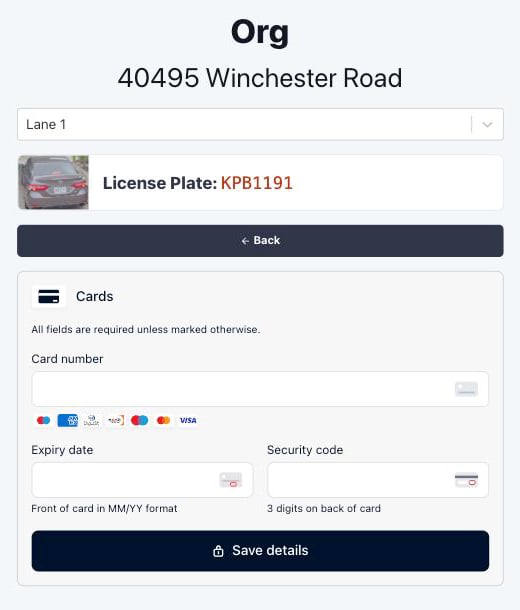
 The customer enters a new card and taps **Save details**. FlexWash saves
the card to the member's profile and immediately retries the failed
charge.
The customer enters a new card and taps **Save details**. FlexWash saves
the card to the member's profile and immediately retries the failed
charge.
 * **Charge approved.** The page shows **Membership Reactivated** with a
**View Receipt** button for the recharge. The membership returns to
active. If the package has an **Unattended Default** benefit, FlexWash
queues that wash and the gate opens. Without one, an attendant has to
send the wash.
* **Charge declined.** The page tells the customer their card was
declined and to try a different card or contact their card issuer. The
new card stays on file, so the next scheduled billing run uses it. The
membership status does not change, the decline does not count as a
billing attempt, and FlexWash does not send a payment failed message.
The **Back** button returns to the prompt so the customer can try
another card or skip.
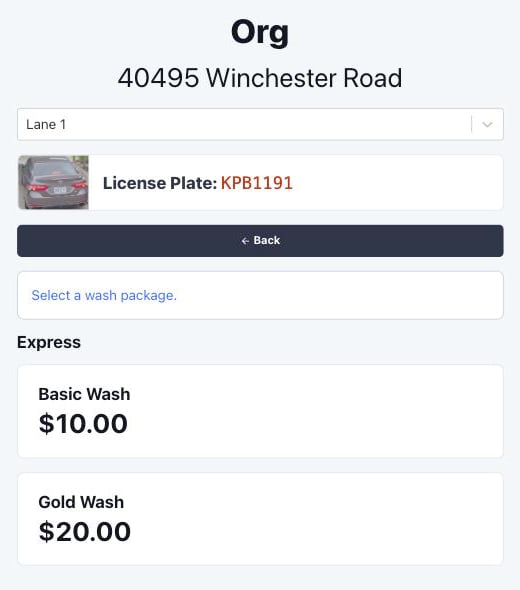
The customer keeps their membership as is and buys a single wash instead.
The menu shows single washes only, since the vehicle already has a
membership.
* **Charge approved.** The page shows **Membership Reactivated** with a
**View Receipt** button for the recharge. The membership returns to
active. If the package has an **Unattended Default** benefit, FlexWash
queues that wash and the gate opens. Without one, an attendant has to
send the wash.
* **Charge declined.** The page tells the customer their card was
declined and to try a different card or contact their card issuer. The
new card stays on file, so the next scheduled billing run uses it. The
membership status does not change, the decline does not count as a
billing attempt, and FlexWash does not send a payment failed message.
The **Back** button returns to the prompt so the customer can try
another card or skip.
The customer keeps their membership as is and buys a single wash instead.
The menu shows single washes only, since the vehicle already has a
membership.
 The page asks the customer to confirm and reminds them that updating
their payment method takes only a minute. **Keep membership** returns to
the prompt.
The page asks the customer to confirm and reminds them that updating
their payment method takes only a minute. **Keep membership** returns to
the prompt.
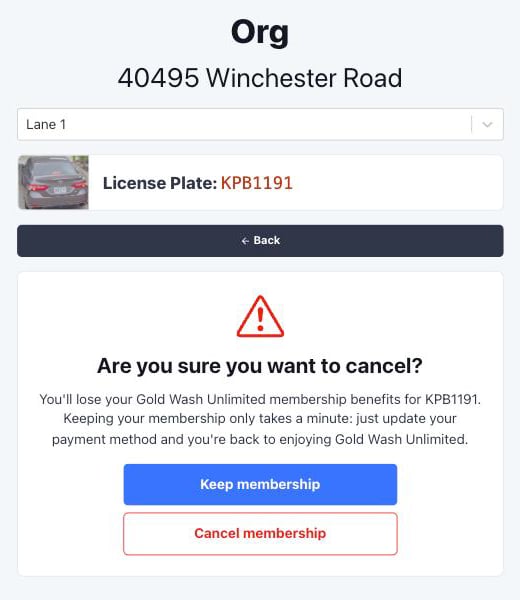 If the customer confirms, FlexWash cancels the membership immediately.
The cancellation is recorded on the customer's timeline as a
self-checkout cancellation with no employee attached. The prompt then
disappears, and the vehicle is offered a fresh membership signup the next
time it is chosen.
**Payment Failed** means a recharge was declined and FlexWash is still
retrying it. The membership is still treated as active. **Invalid Card**
means FlexWash has exhausted its retries and the membership has lapsed.
Both statuses get the same prompt at the lane.
## Troubleshooting
* **The vehicle is not in the list.** The list is the lane's live checkout
queue, fed by the on-site system. Check that the site is online and that
the camera read the plate. The customer can switch lanes in the dropdown
if they scanned the wrong code.
* **A package is missing from the menu.** Open the package template and
confirm that both **Enabled** and **Self-Checkout Enabled** are checked on
the **Access Control** tab.
* **A new member paid but the gate did not open.** The membership package
has no Unattended Default benefit, or the on-site system could not be
reached. The page shows **Wash Queue Error** in the second case. The
membership is active either way; an attendant can send the wash.
This documentation is built and hosted on [Mintlify](https://mintlify.com), a developer documentation platform.
If the customer confirms, FlexWash cancels the membership immediately.
The cancellation is recorded on the customer's timeline as a
self-checkout cancellation with no employee attached. The prompt then
disappears, and the vehicle is offered a fresh membership signup the next
time it is chosen.
**Payment Failed** means a recharge was declined and FlexWash is still
retrying it. The membership is still treated as active. **Invalid Card**
means FlexWash has exhausted its retries and the membership has lapsed.
Both statuses get the same prompt at the lane.
## Troubleshooting
* **The vehicle is not in the list.** The list is the lane's live checkout
queue, fed by the on-site system. Check that the site is online and that
the camera read the plate. The customer can switch lanes in the dropdown
if they scanned the wrong code.
* **A package is missing from the menu.** Open the package template and
confirm that both **Enabled** and **Self-Checkout Enabled** are checked on
the **Access Control** tab.
* **A new member paid but the gate did not open.** The membership package
has no Unattended Default benefit, or the on-site system could not be
reached. The page shows **Wash Queue Error** in the second case. The
membership is active either way; an attendant can send the wash.
This documentation is built and hosted on [Mintlify](https://mintlify.com), a developer documentation platform.