> ## Documentation Index
> Fetch the complete documentation index at: https://docs.flexwash.com/llms.txt
> Use this file to discover all available pages before exploring further.
# Interim Lookup
> Recognize a member at a site that has not converted yet, from any phone, using nothing but their license plate.
When you convert sites to FlexWash one at a time, there is a stretch where some
of your locations are live and others are not. A member who normally washes at a
converted site pulls into one that has not converted yet, and the staff there
have no way to see that the customer exists.
Interim Lookup closes that gap. An admin generates a link, staff open it on a
phone, and a license plate returns the customer's membership status and package.
For example, sites A and B are on FlexWash and site C is not yet. Staff at site
C can look up a plate and see the membership that customer holds at A or B, and
treat them accordingly until C converts.
Use it when someone at the pay station or in the lane needs to answer one
question fast: is this car a member, and what did they pay for?
## Generate the lookup link
This is done once per shift by anyone with access to the FlexWash back office.
Go to **Interim Lookup** in the sidebar.
FlexWash creates a QR code and a link.
 Scan the QR code with the phone's camera, or click **Copy** and send the
link to staff.
The link expires 12 hours after it is generated. Generate a new one at the
start of each shift rather than reusing an old link.
## Look up a vehicle
The lookup page opens with a license plate field and a **Scan LP** button.
Scan the QR code with the phone's camera, or click **Copy** and send the
link to staff.
The link expires 12 hours after it is generated. Generate a new one at the
start of each shift rather than reusing an old link.
## Look up a vehicle
The lookup page opens with a license plate field and a **Scan LP** button.
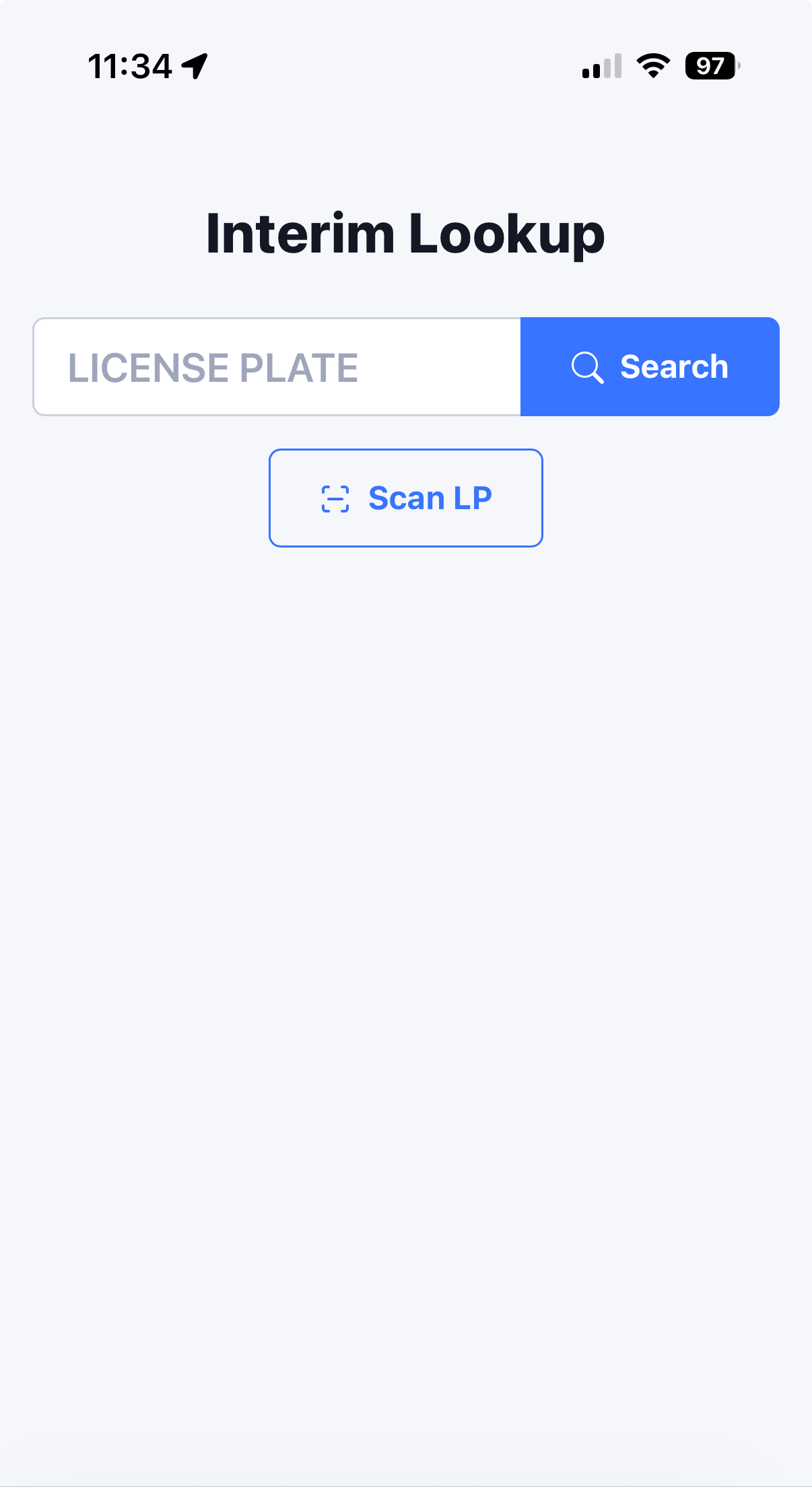 Enter the license plate and tap **Search**.
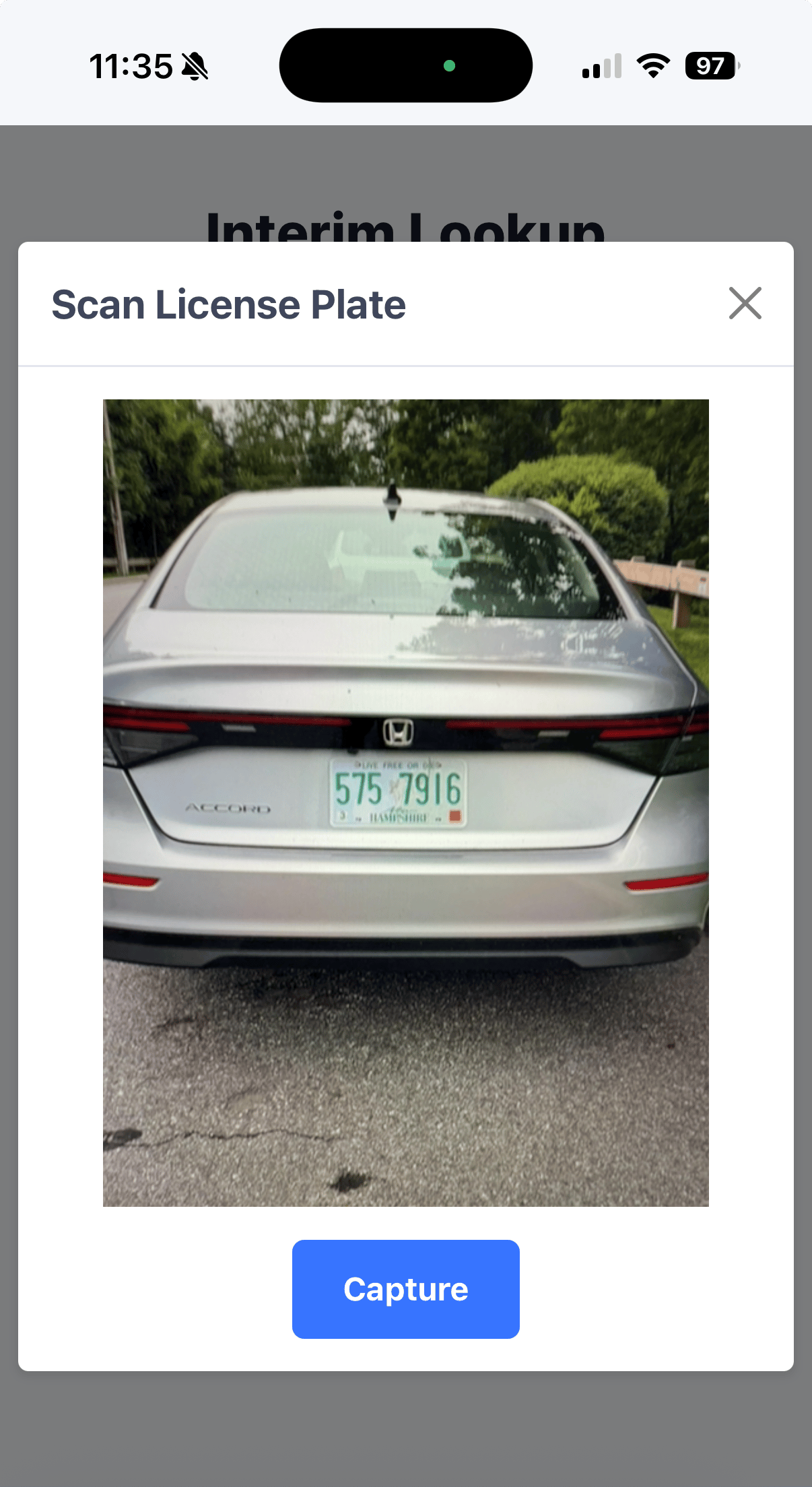
The camera opens in a **Scan License Plate** window.
Fill the frame with the rear of the vehicle so the plate is readable,
then tap **Capture**.
Enter the license plate and tap **Search**.
The camera opens in a **Scan License Plate** window.
Fill the frame with the rear of the vehicle so the plate is readable,
then tap **Capture**.
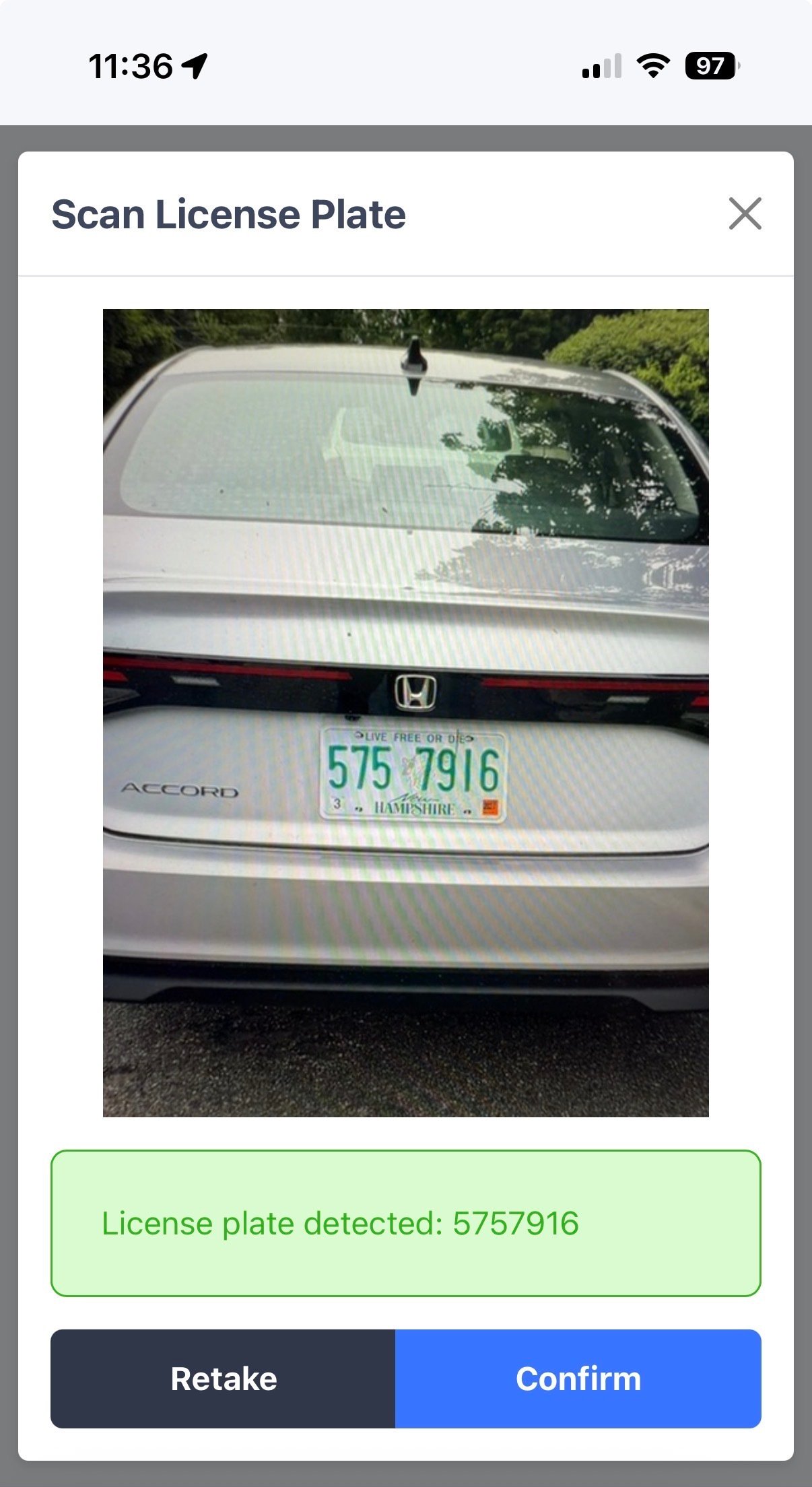
 FlexWash shows the characters it detected. Compare them against the
plate before tapping **Confirm**. Tap **Retake** if the read is wrong or
the image is blurry.
FlexWash shows the characters it detected. Compare them against the
plate before tapping **Confirm**. Tap **Retake** if the read is wrong or
the image is blurry.
 Characters like 0 and O, 1 and I, and 8 and B are easy to confuse, and
dirt, snow, and plate covers make it worse. See
[LPR and RFID limitations](/technical/hardware/lpr-rfid)
for what affects a read.
## Read the result
**Member Details** returns the customer's subscription status and package.
Characters like 0 and O, 1 and I, and 8 and B are easy to confuse, and
dirt, snow, and plate covers make it worse. See
[LPR and RFID limitations](/technical/hardware/lpr-rfid)
for what affects a read.
## Read the result
**Member Details** returns the customer's subscription status and package.
 **Subscription Status** tells you how FlexWash knows about this customer.
**Package** is the plan they hold, which is what determines the wash they can
redeem.
A status of `Interim import` means the membership came in through an
[Interim Import](/data-import/interim-import) rather than being created in
FlexWash directly. For those customers, the package shown is the FlexWash
package their legacy plan was mapped to under **Plan Mappings**. If it looks
wrong, the plan mapping is the place to check.
This documentation is built and hosted on [Mintlify](https://mintlify.com), a developer documentation platform.
**Subscription Status** tells you how FlexWash knows about this customer.
**Package** is the plan they hold, which is what determines the wash they can
redeem.
A status of `Interim import` means the membership came in through an
[Interim Import](/data-import/interim-import) rather than being created in
FlexWash directly. For those customers, the package shown is the FlexWash
package their legacy plan was mapped to under **Plan Mappings**. If it looks
wrong, the plan mapping is the place to check.
This documentation is built and hosted on [Mintlify](https://mintlify.com), a developer documentation platform.