> ## Documentation Index
> Fetch the complete documentation index at: https://docs.flexwash.com/llms.txt
> Use this file to discover all available pages before exploring further.
# Time Clock
> Schedule your crew, track every punch, and see labor cost against the schedule you published, without paying for a separate workforce app.
Time Clock covers the weekly schedule, employee punches, and the hours that feed your labor cost. Employees clock in and out on any device. Admins build the schedule, correct punches, and pull labor reports from **Time Clock** in the sidebar.
## What you set up first
Three things have to exist before anyone can punch in.
Go to **Employees** and open an employee, or [create a new one](/configuration/users-and-admin/employees#create-an-employee). **Punch Code** is a required 4 digit code and it is what the employee enters at the kiosk.
Turn on **Include in Schedule Builder** for anyone you want to schedule. Scheduled employees appear as rows in the weekly schedule builder. Clearing the checkbox does not stop them clocking in at the kiosk.
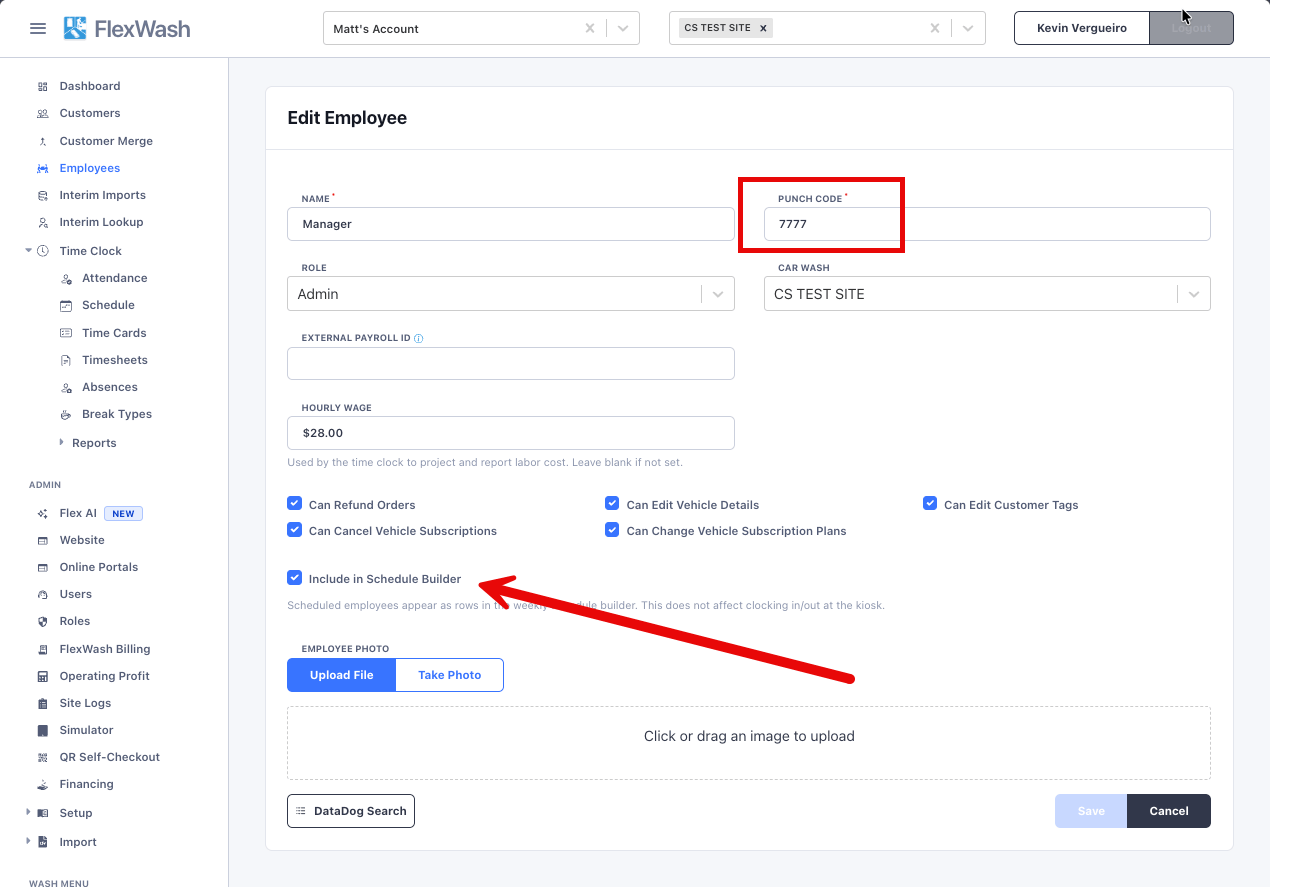 **External Payroll ID** is not used by Time Clock. It holds the employee's ID in your payroll provider and appears in the commissions summary export.
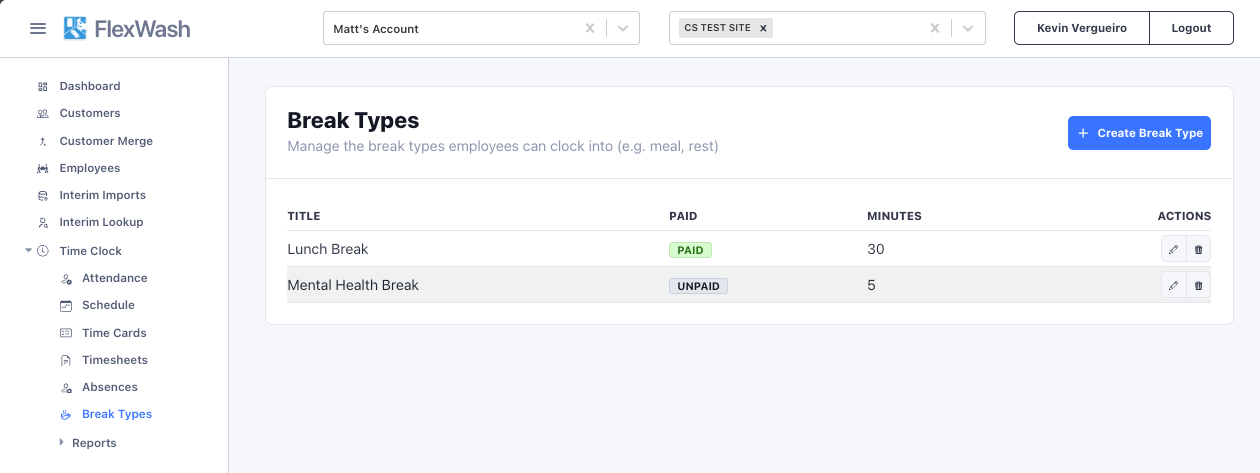
Go to **Time Clock > Break Types** and select **Create Break Type**. Each break type has a title, a paid or unpaid setting, and a length in minutes, for example a 30 minute unpaid meal break and a 10 minute paid rest break. These are the breaks employees can clock into at the kiosk.
**External Payroll ID** is not used by Time Clock. It holds the employee's ID in your payroll provider and appears in the commissions summary export.
Go to **Time Clock > Break Types** and select **Create Break Type**. Each break type has a title, a paid or unpaid setting, and a length in minutes, for example a 30 minute unpaid meal break and a 10 minute paid rest break. These are the breaks employees can clock into at the kiosk.
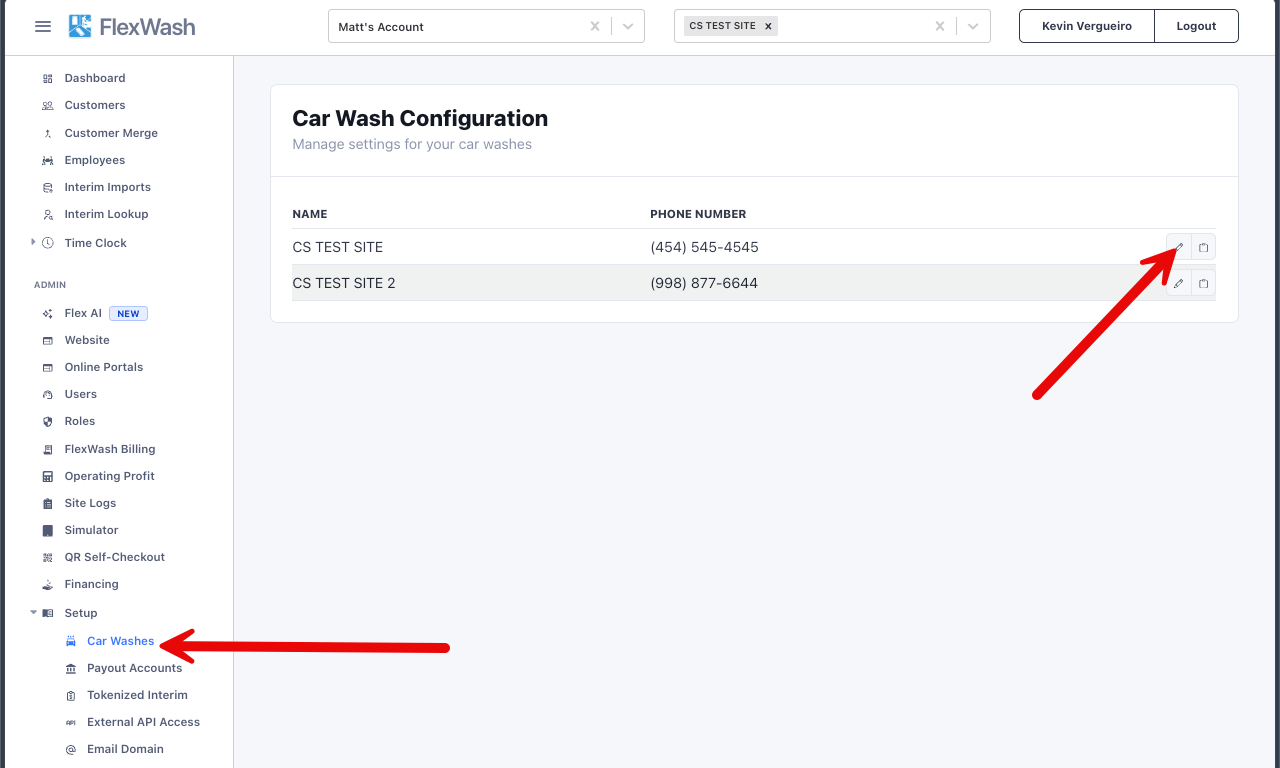
 The kiosk link does not live under Time Clock. Go to **Setup > Car Washes**, open the car wash, and find the **Time Clock Kiosk** section on the **Basic** tab. Select **Copy** to take the link, then open it on the tablet, phone, or computer your crew will punch from.
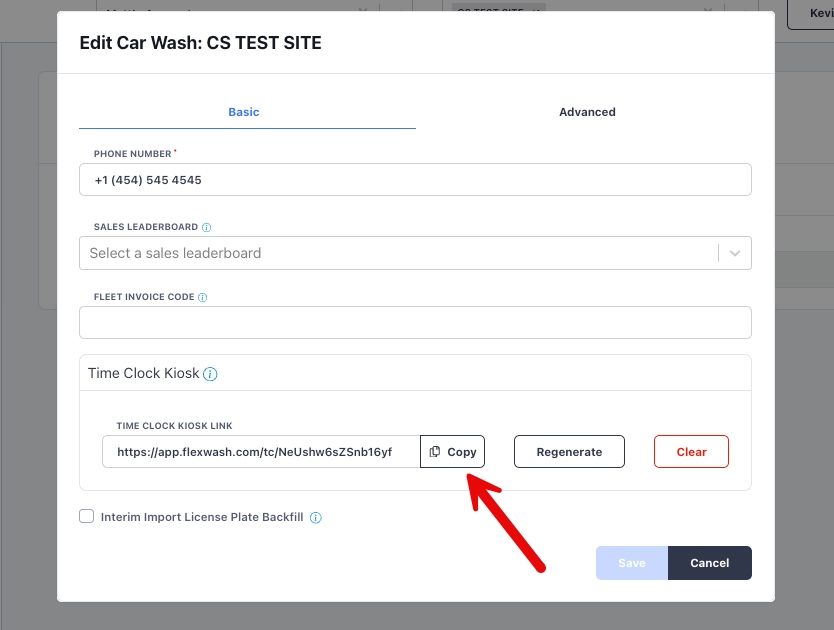
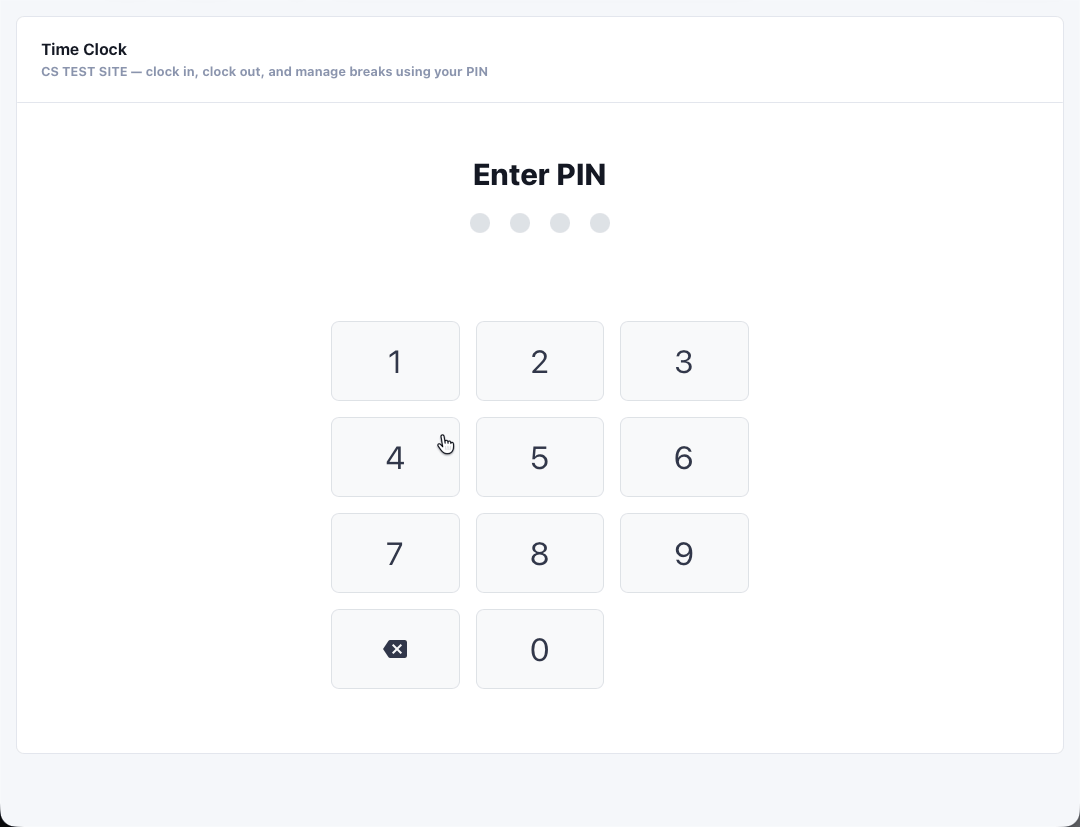 The kiosk link is a standalone punch in and out page that needs no FlexWash login. Anyone holding the link can reach it, so treat it like a password. **Regenerate** issues a new link and breaks the old one immediately, so every device you have set up needs the new link. **Clear** turns the kiosk off.
## Build and publish a schedule
Go to **Time Clock > Schedule** to open the Schedule Builder. It shows one week at a time, one row per scheduled employee, and a **Labor Cost** row across the bottom.
1. Pick the week with **Previous** and **Next**. Weeks run Monday to Sunday.
2. Select **+ Add** in a day cell to place a shift, or select **Copy Prior Week** to carry last week's pattern forward.
3. Select **Save** to keep your work. The week stays marked **DRAFT**.
4. Select **Publish** when the schedule is final.
The kiosk link is a standalone punch in and out page that needs no FlexWash login. Anyone holding the link can reach it, so treat it like a password. **Regenerate** issues a new link and breaks the old one immediately, so every device you have set up needs the new link. **Clear** turns the kiosk off.
## Build and publish a schedule
Go to **Time Clock > Schedule** to open the Schedule Builder. It shows one week at a time, one row per scheduled employee, and a **Labor Cost** row across the bottom.
1. Pick the week with **Previous** and **Next**. Weeks run Monday to Sunday.
2. Select **+ Add** in a day cell to place a shift, or select **Copy Prior Week** to carry last week's pattern forward.
3. Select **Save** to keep your work. The week stays marked **DRAFT**.
4. Select **Publish** when the schedule is final.
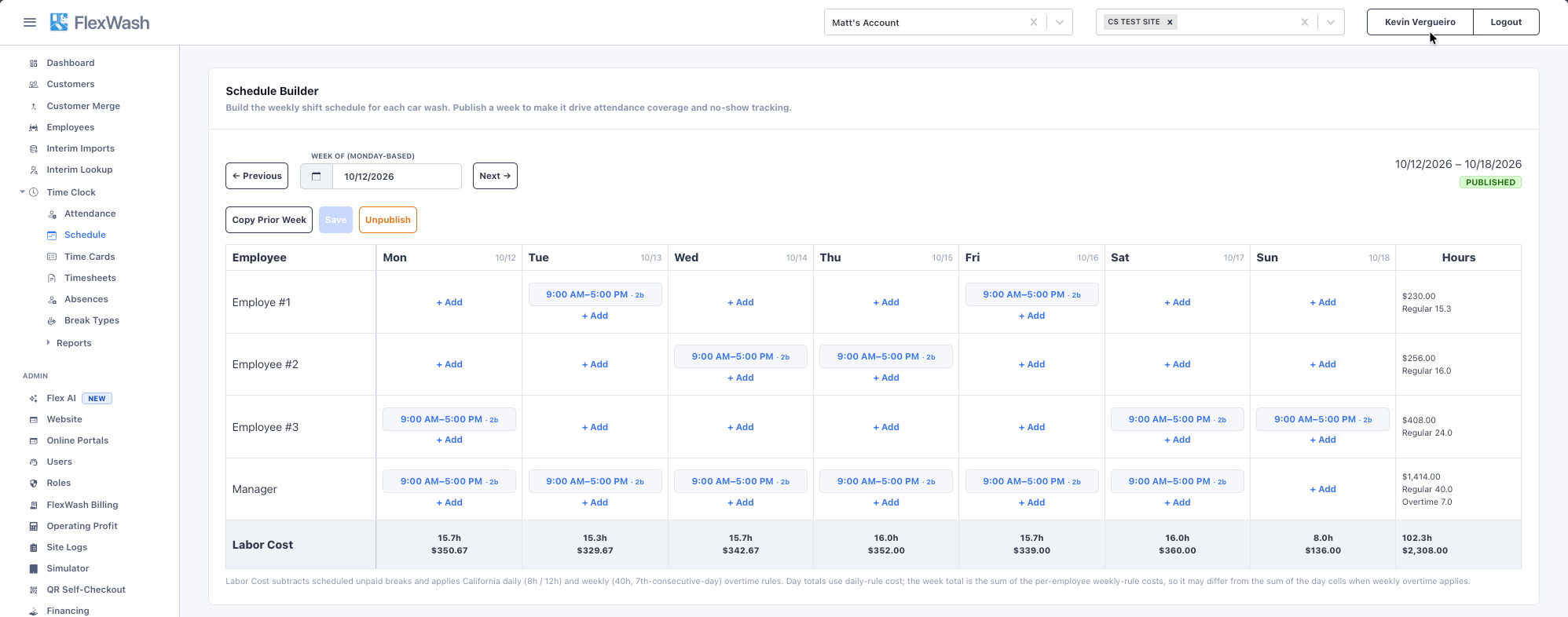 Publishing is what makes the schedule count. A published week drives scheduled coverage on the Attendance page and the late and no show tracking that goes with it, and absences can only be recorded against a published schedule. A saved draft week is yours to keep editing and tracks nothing.
The **Labor Cost** row projects what the week costs. It subtracts scheduled unpaid breaks before costing the hours. Day totals and the week total are calculated under different overtime rules, so the week total can differ from the sum of the day cells when weekly overtime applies.
## Run the day
**Time Clock > Attendance** is the screen to keep open. Pick a date and it shows:
* **Time Cards** for that day, with a count of employees, total hours, who is clocked in, and who is on break.
* **Scheduled Coverage**, counting who was **Expected**, **On Time**, **Late**, and **No Show** against the published schedule.
Publishing is what makes the schedule count. A published week drives scheduled coverage on the Attendance page and the late and no show tracking that goes with it, and absences can only be recorded against a published schedule. A saved draft week is yours to keep editing and tracks nothing.
The **Labor Cost** row projects what the week costs. It subtracts scheduled unpaid breaks before costing the hours. Day totals and the week total are calculated under different overtime rules, so the week total can differ from the sum of the day cells when weekly overtime applies.
## Run the day
**Time Clock > Attendance** is the screen to keep open. Pick a date and it shows:
* **Time Cards** for that day, with a count of employees, total hours, who is clocked in, and who is on break.
* **Scheduled Coverage**, counting who was **Expected**, **On Time**, **Late**, and **No Show** against the published schedule.
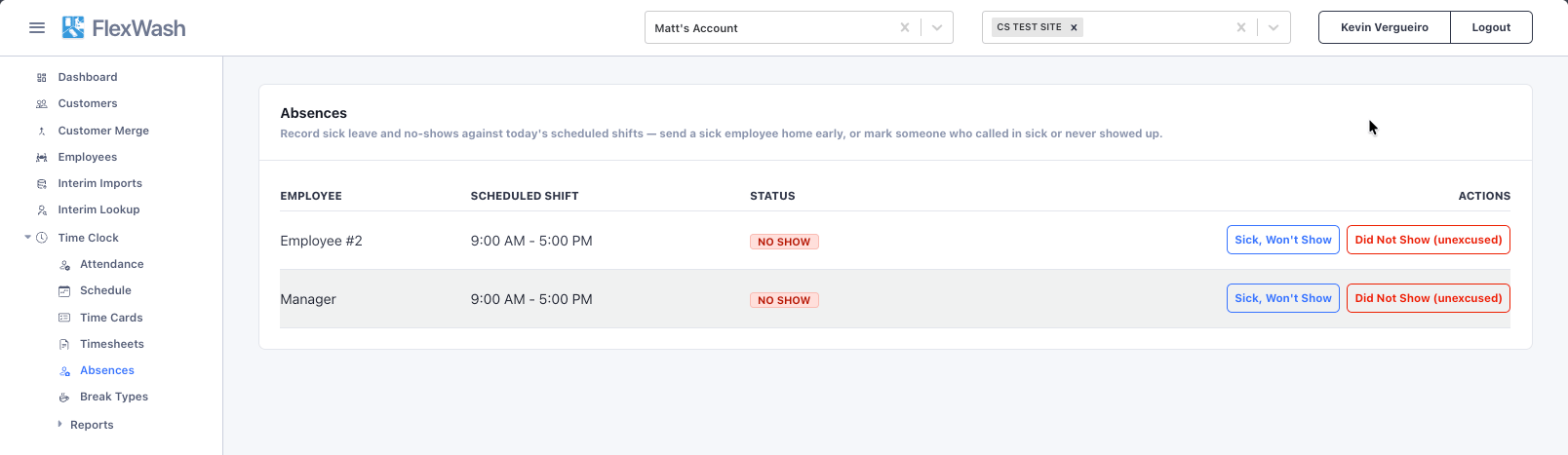
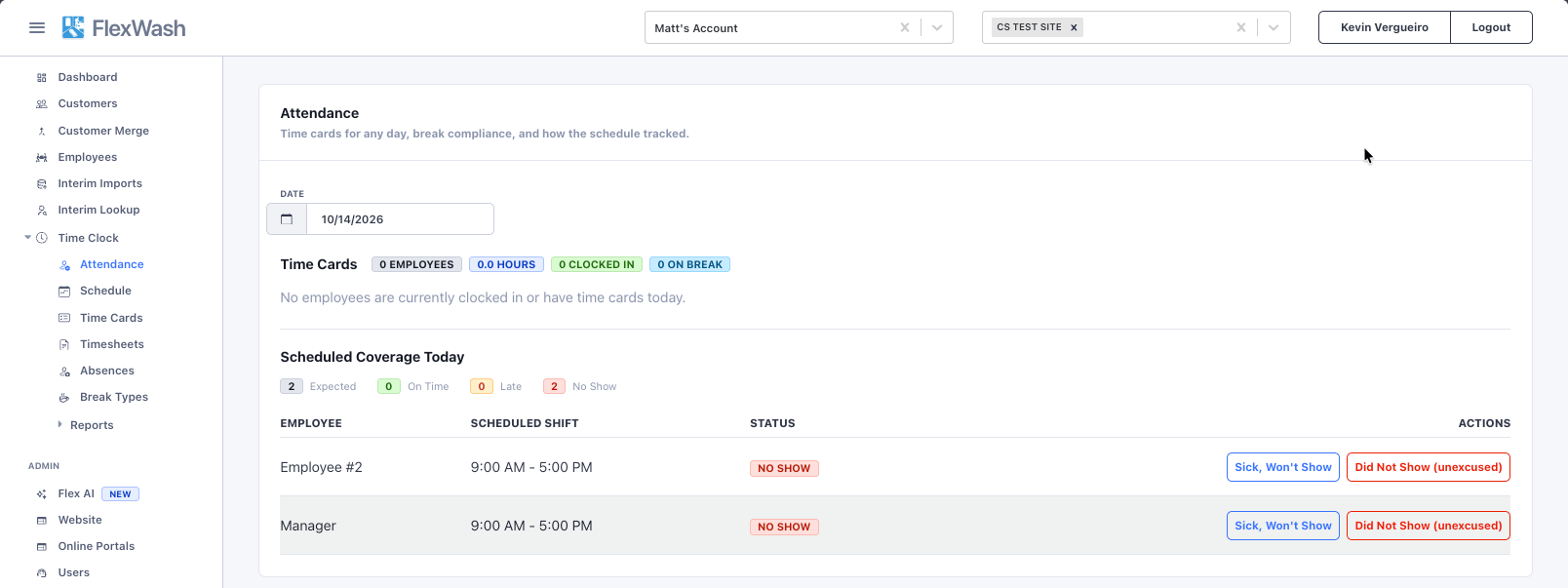 **Time Clock > Absences** records sick leave and no shows against today's scheduled shifts. Use it to send a sick employee home early, or to mark someone who called in sick or never showed up. The page needs a published schedule for the day.
 ## Fix punches and close out the pay period
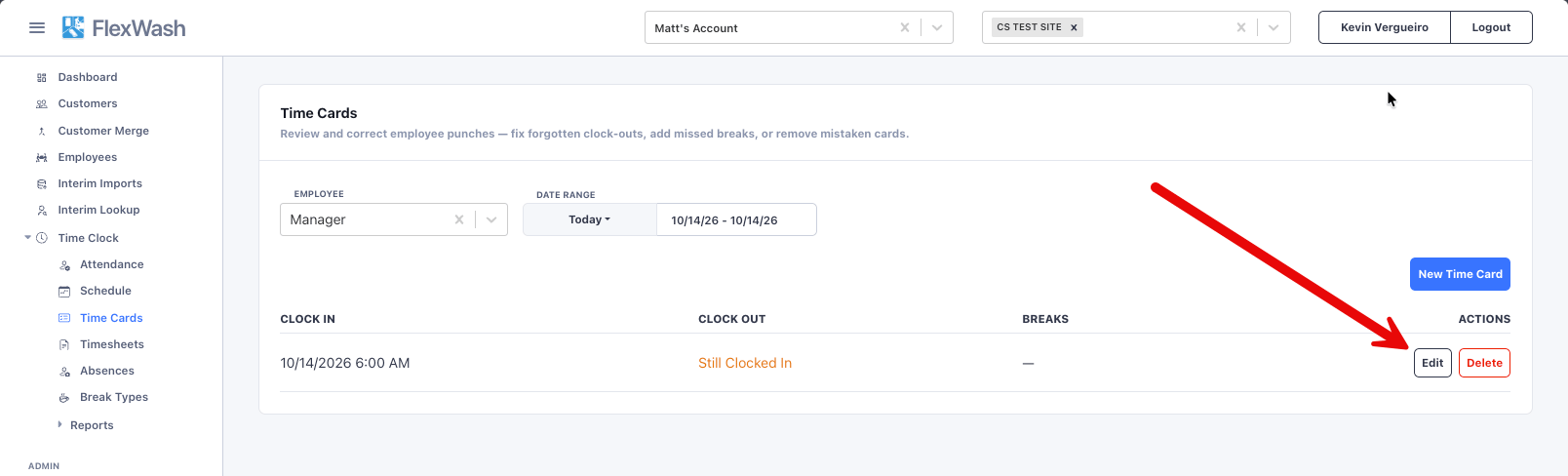
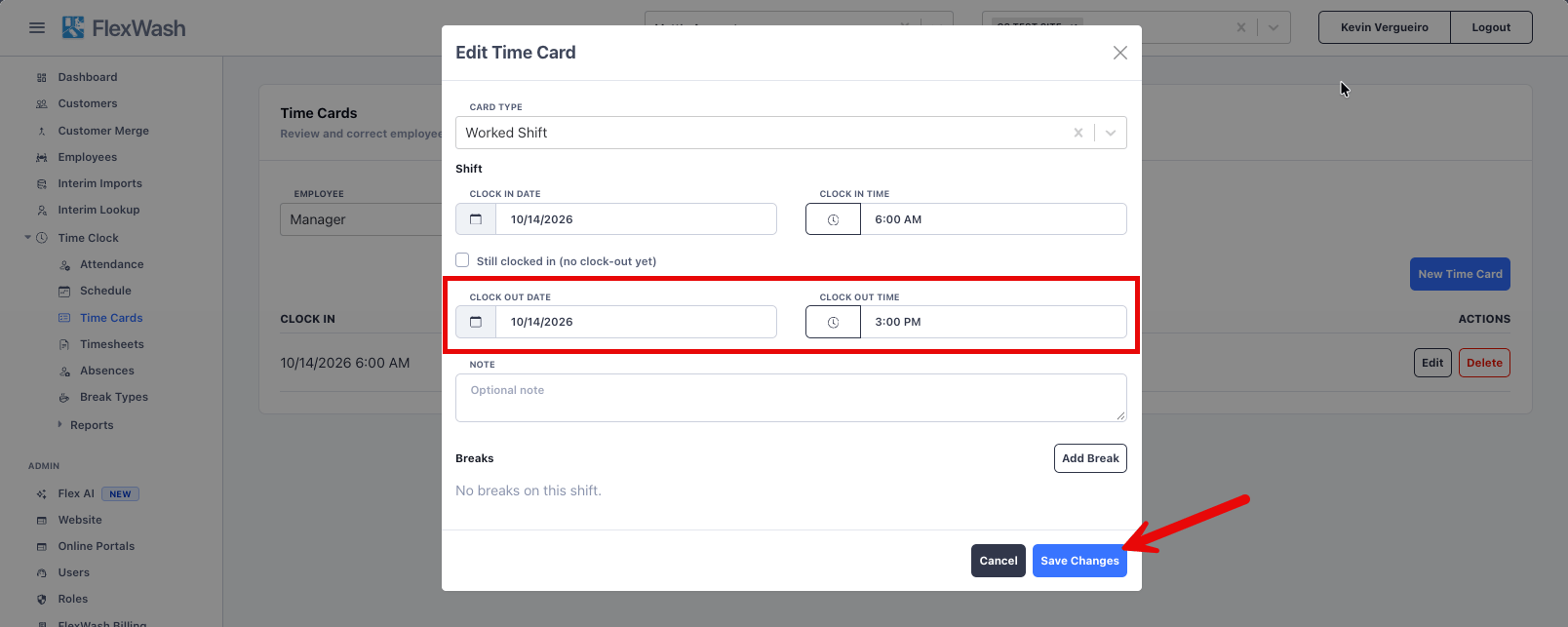
**Time Clock > Time Cards** is where you correct what the kiosk captured. Pick an employee and a date range, then fix forgotten clock-outs, add a missed break, or remove a time card created by mistake.
## Fix punches and close out the pay period
**Time Clock > Time Cards** is where you correct what the kiosk captured. Pick an employee and a date range, then fix forgotten clock-outs, add a missed break, or remove a time card created by mistake.
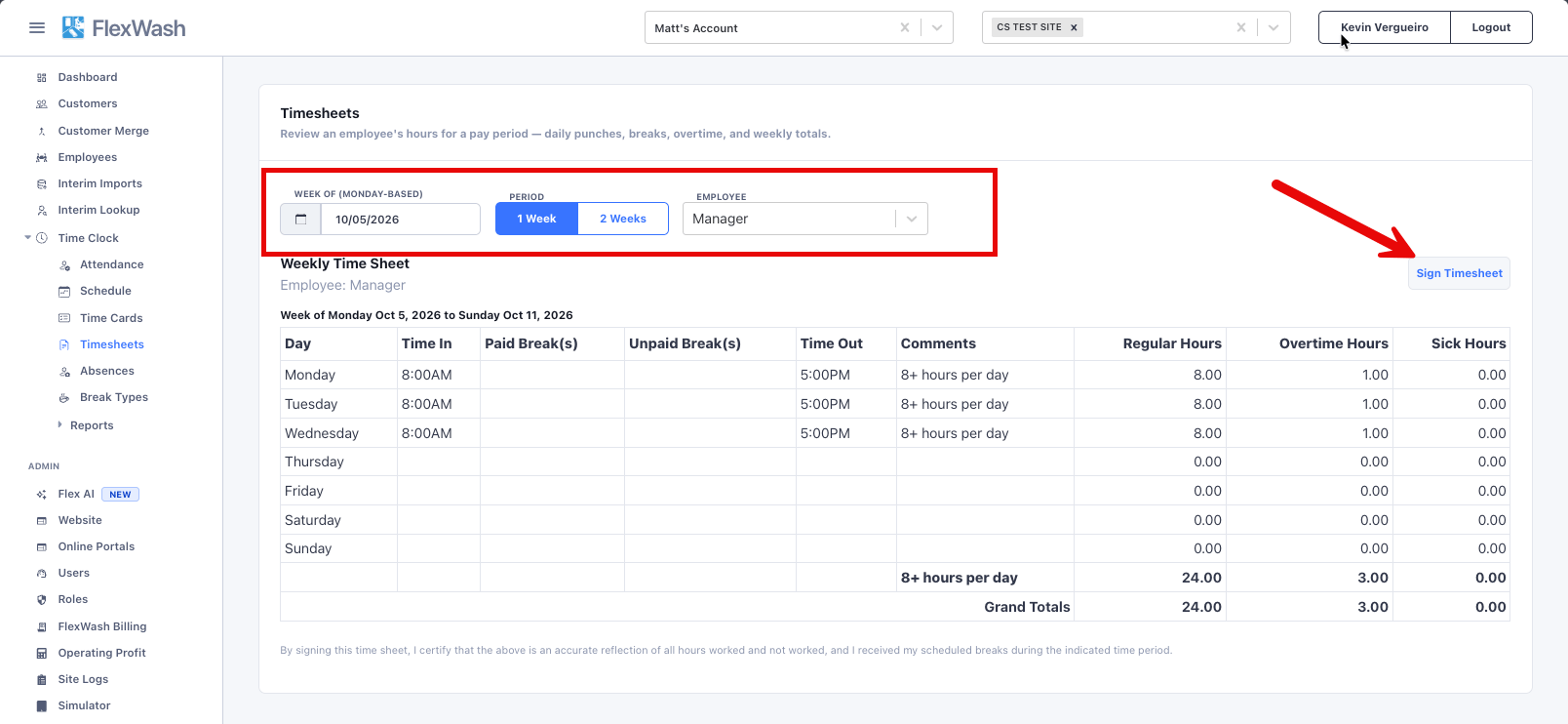
 **Time Clock > Timesheets** shows one employee's hours for a pay period, including daily punches, breaks, overtime, and weekly totals. Choose a **1 Week** or **2 Weeks** period and the week it starts in.
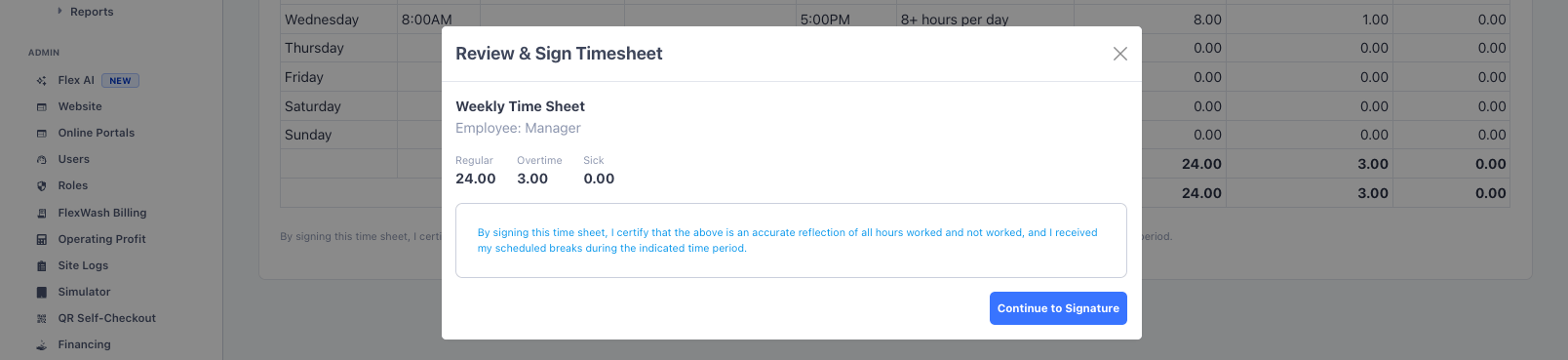
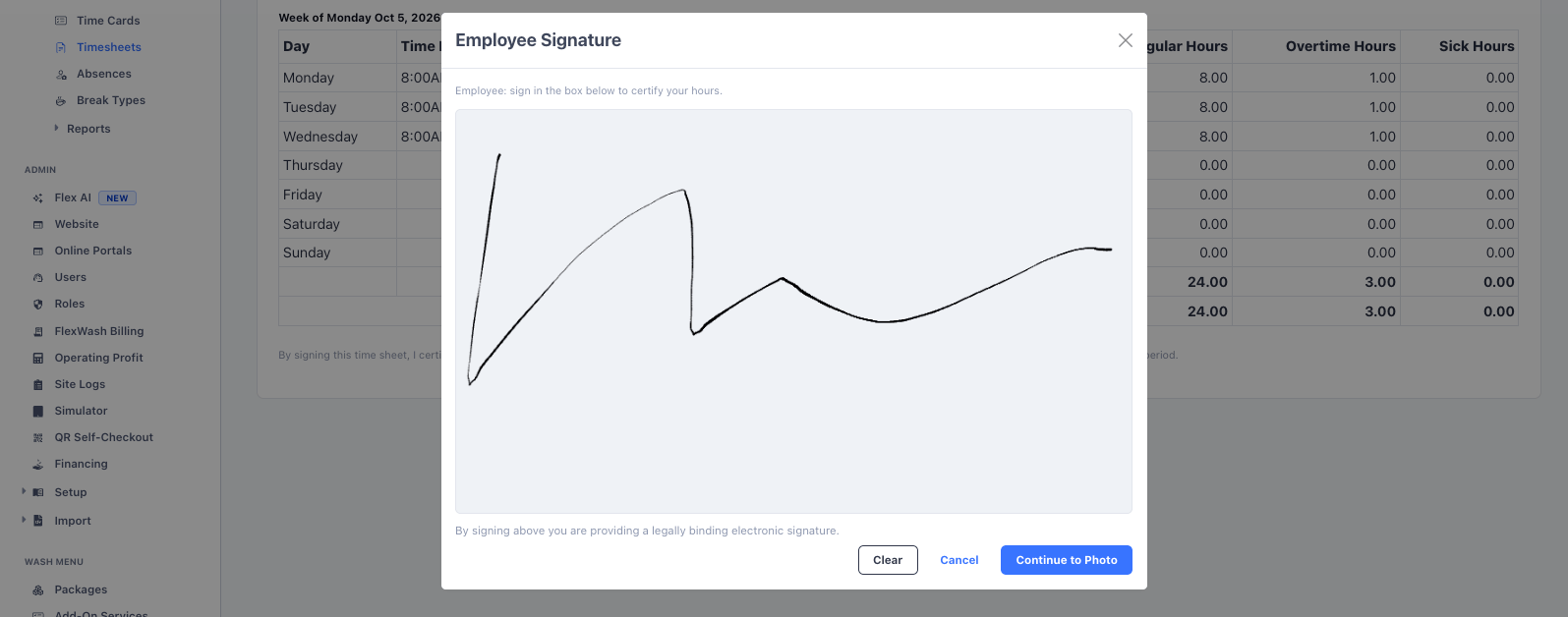
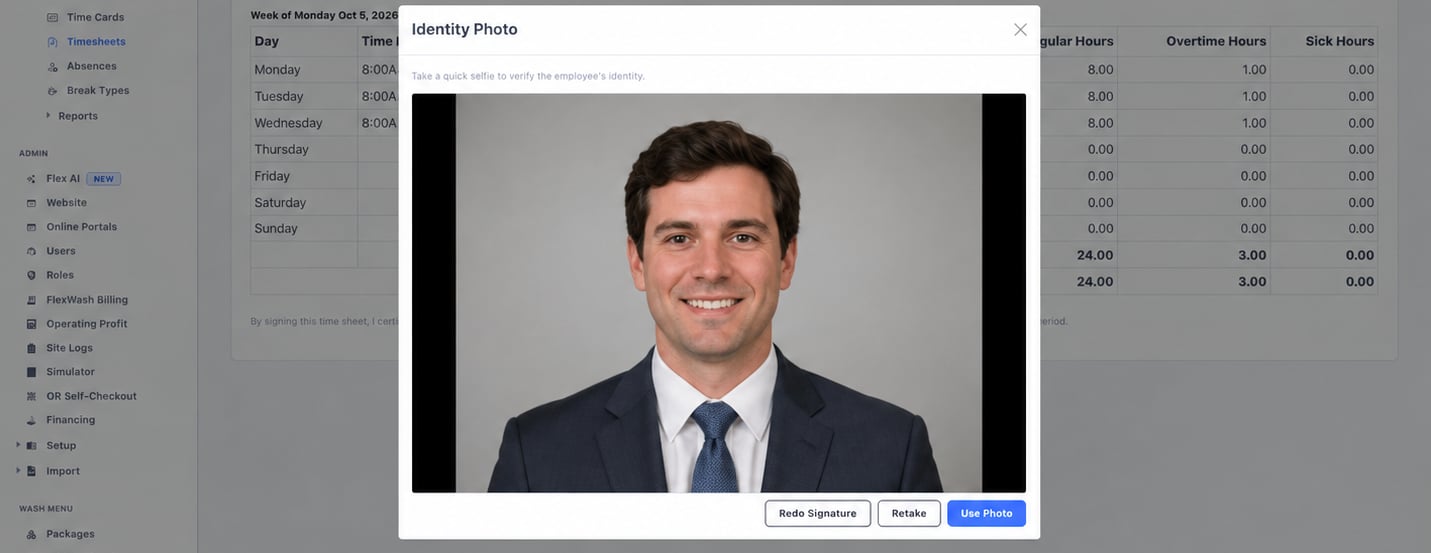
Once the period is correct, the employee signs the timesheet to confirm the hours. Select **Sign Timesheet**, have the employee sign, and the screen captures a photo of them alongside the signature.
**Time Clock > Timesheets** shows one employee's hours for a pay period, including daily punches, breaks, overtime, and weekly totals. Choose a **1 Week** or **2 Weeks** period and the week it starts in.
Once the period is correct, the employee signs the timesheet to confirm the hours. Select **Sign Timesheet**, have the employee sign, and the screen captures a photo of them alongside the signature.
 ## Reports
**Time Clock > Reports** holds four reports.
| Report | What it answers |
| - | - |
| **Labor Summary** | Hours and labor cost per employee, with overtime computed over full workweeks. Overtime at 1.5x and double overtime at 2x are included in the cost. Select an employee to jump to their time cards. |
| **Daily Summary** | Hours worked on a chosen day, and in that workweek so far, per employee. The workweek counts from Monday. |
| **Break Violations** | Days where an employee took fewer rest or meal breaks than required. |
| **Sick / No-Show** | Sick days and no-call absences per employee over a date range, with year to date and last year comparisons. |
This documentation is built and hosted on [Mintlify](https://mintlify.com), a developer documentation platform.
## Reports
**Time Clock > Reports** holds four reports.
| Report | What it answers |
| - | - |
| **Labor Summary** | Hours and labor cost per employee, with overtime computed over full workweeks. Overtime at 1.5x and double overtime at 2x are included in the cost. Select an employee to jump to their time cards. |
| **Daily Summary** | Hours worked on a chosen day, and in that workweek so far, per employee. The workweek counts from Monday. |
| **Break Violations** | Days where an employee took fewer rest or meal breaks than required. |
| **Sick / No-Show** | Sick days and no-call absences per employee over a date range, with year to date and last year comparisons. |
This documentation is built and hosted on [Mintlify](https://mintlify.com), a developer documentation platform.